No matching help topic
Try a shorter term or browse the complete topic list.
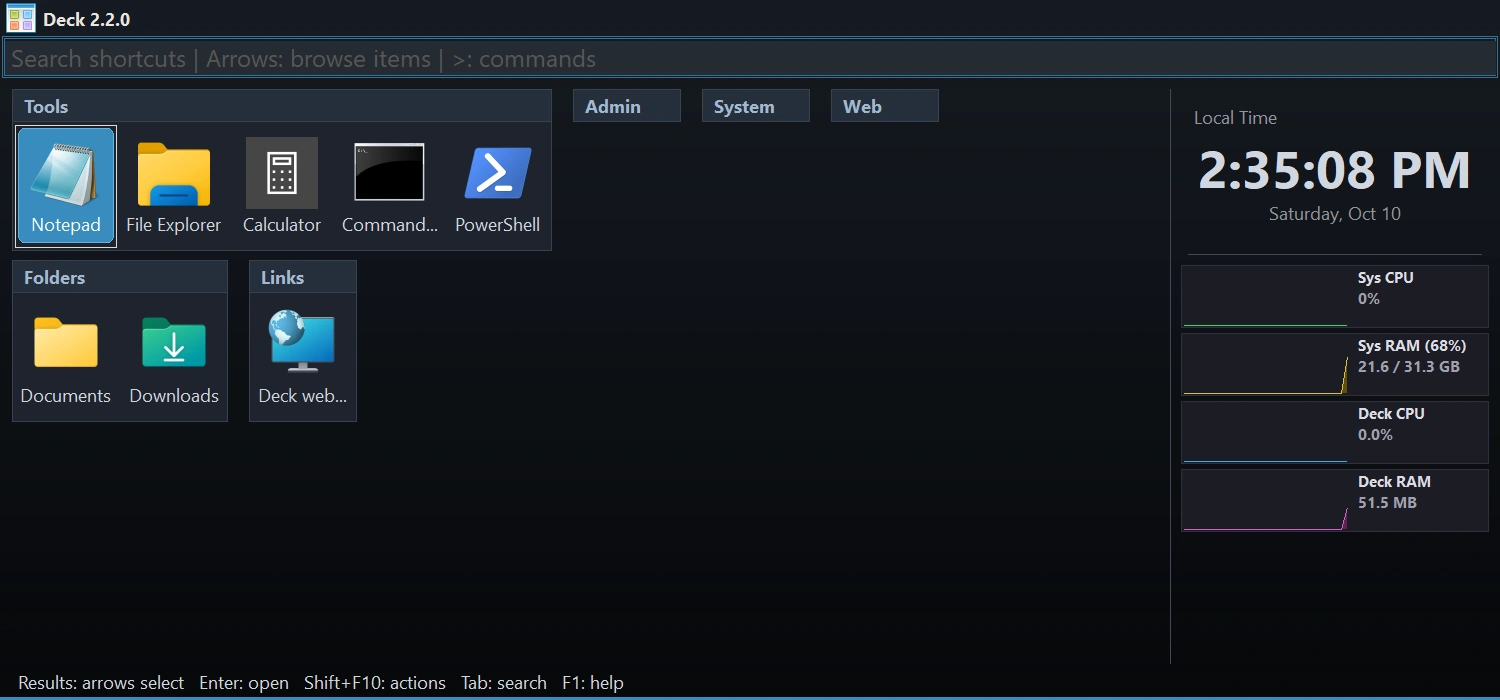
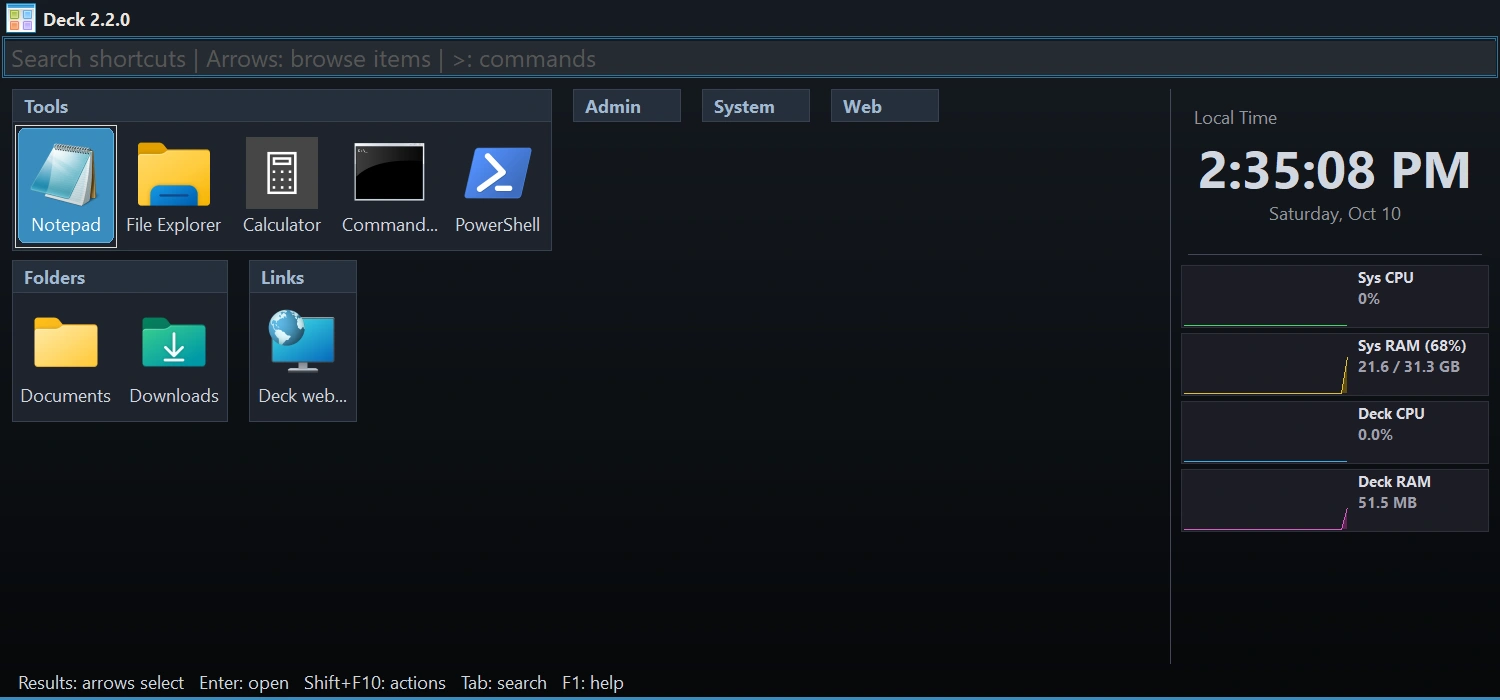
Deck is a borderless launcher that opens over the desktop, arranges shortcuts into groups, and can place live widgets in a side panel. Programs, scripts, documents, folders, URLs, dividers, and plugin actions all live in the same searchable workspace.
The main launcher has three working areas:
- Shortcut groups form the central grid. Groups may share rows in Compact mode or occupy one row each in Vertical mode.
- The optional widget panel can show clocks, weather, and system resource graphs.
- The context and tray menus provide add commands, managers, Quick Settings, Options, diagnostics, updates, and exit controls.
Options is the control center. Browse its tree or type in Search options to jump directly to General, Language, Hotkeys, Search & Filter, Appearance, Layout, Widgets, About, or Manage Plugins.
Deck is a portable Windows launcher; there is no installer. Choose the build that matches your operating system, extract the complete archive, and keep its folders together.
- Download the Win64 build for 64-bit Windows or the Win32 build for 32-bit Windows.
- Extract the ZIP to a writable folder such as your user tools folder or a USB drive.
- Run
deck-x64.exeordeck-x86.exe. - Deck starts in the notification area and shows first-run guidance.
Do not run Deck from inside the ZIP. Extract it first so settings, language files, and plugins remain available.
Deck is designed to appear on demand and disappear when your task is complete.
- Press
Ctrl+F12to show or hide Deck with the default global hotkey. - Change the binding under Options → Hotkeys or from Quick Settings.
- Enable the edge trigger to open Deck from the top or bottom screen edge with a left or right click.
- Press
F2with the default setup to switch between the top and bottom dock. - Enable Run at Windows startup if you want Deck ready after sign-in.
The menu also provides theme, icon size, group layout, animation speed, transparency, tooltip, and layout-lock controls without opening the full Options window.
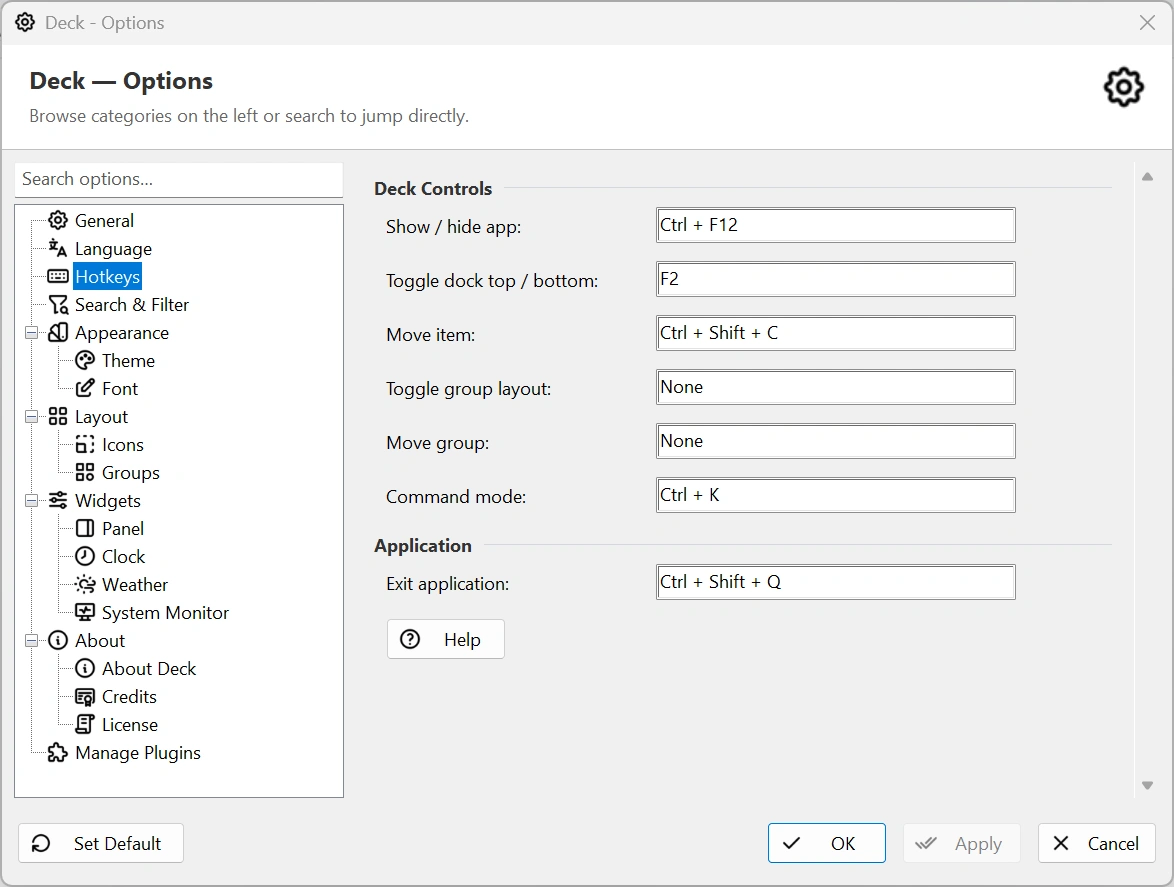
Options → General controls how Deck integrates with Windows and where it stores data.
- Run Deck automatically when you sign in to Windows.
- Add an optional “Add to Deck App Launcher…” command to the Explorer context menu for files and folders.
- Show the standard Windows context menu for file and folder shortcuts inside Deck.
- Ask for confirmation before Deck exits.
- Choose Sub-folder, User AppData, or Beside EXE for data storage.
- Optionally mirror settings to the Windows Registry.
- Enable the clickable top or bottom edge trigger, choose left click, right click, or both, adjust its thickness, and choose which connected monitors show it.
- Optionally ask programs to open on the monitor where Deck opened; some apps choose their own position.
Changing the data location migrates Deck's active data. Let the operation finish, then verify the selected location before removing an old copy.
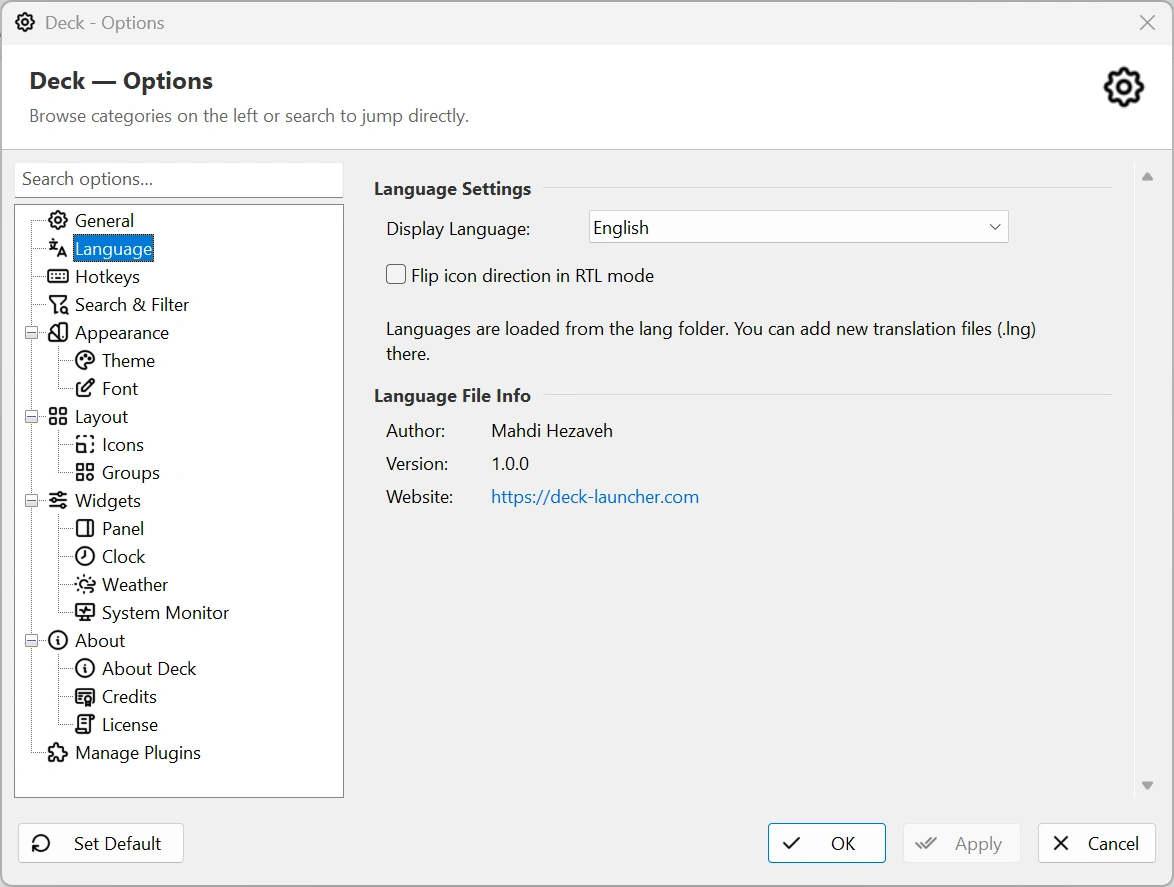
Options → Language follows the Windows display language or uses an installed .lng file. Deck 2.2 includes English, Persian, German, Spanish, and French, including plugin text and help. Persian supports right-to-left layouts and optional icon mirroring.
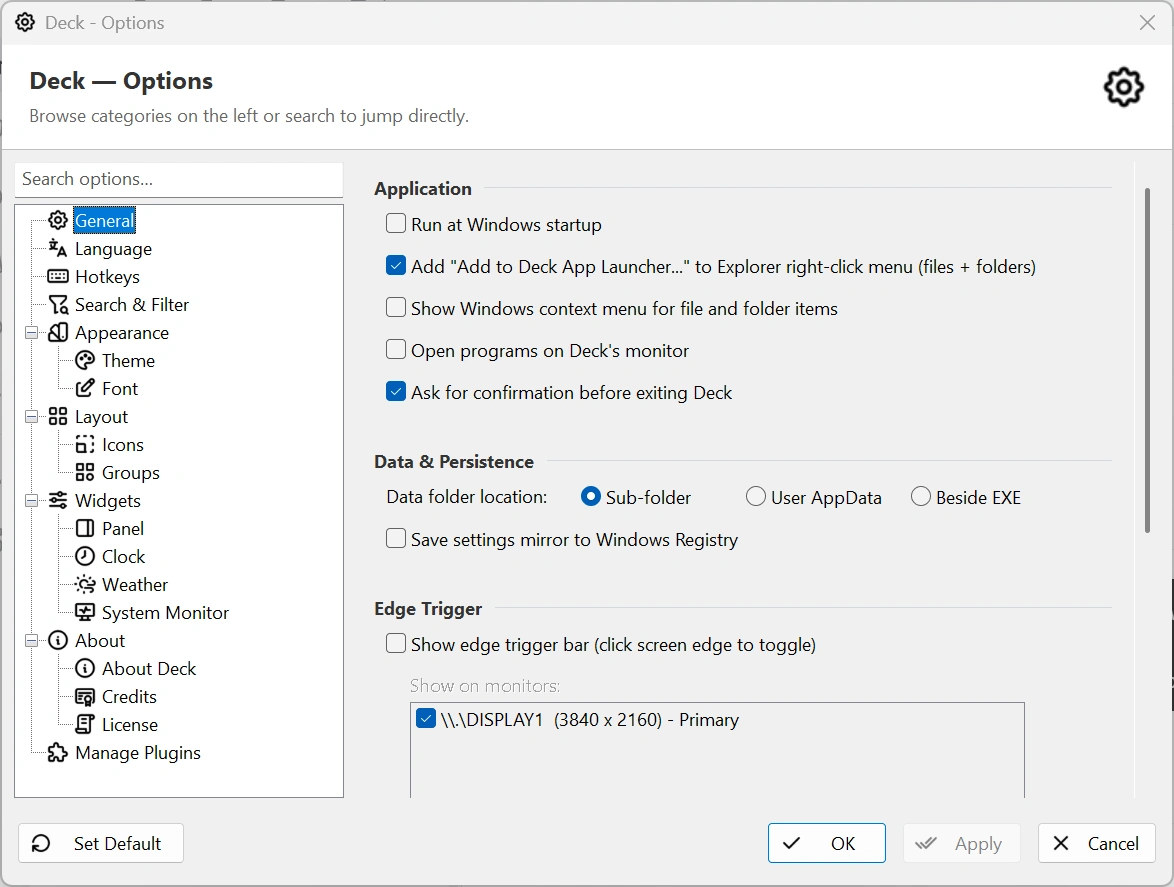
Options → Hotkeys configures Deck shortcuts. The show/hide key is global; other controls work in Deck. Defaults are:
- Show/hide:
Ctrl+F12 - Command mode:
Ctrl+K - Toggle top/bottom dock:
F2 - Move selected item:
Ctrl+Shift+C - Toggle group layout: unassigned
- Move selected group: unassigned
- Exit:
Ctrl+Shift+Q
Select a hotkey field, press the combination, and Apply. Profile bindings are configured separately in Profiles and work only while Deck is focused. Conflicting or invalid combinations keep the previous binding.
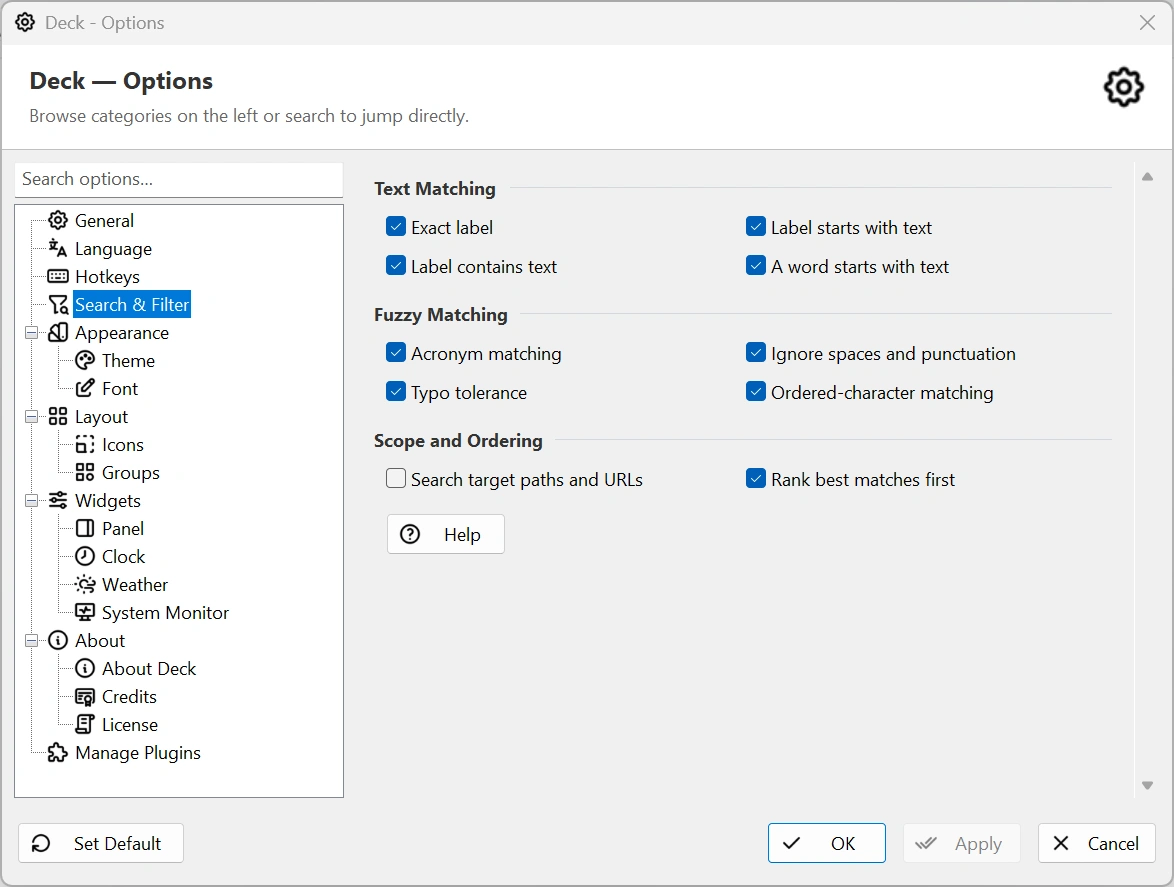
Start typing while Deck is open to filter the launcher immediately. Under Options → Search & Filter, enable the matchers that fit the way you think.
- Exact, prefix, contains, and word-prefix matching cover normal text searches.
- Acronym matching finds
Command Promptfromcp. - Typo tolerance accepts small errors in searches of four or more characters.
- Ordered-character matching allows gaps between typed characters.
- Optional target matching also searches paths and URLs at a lower priority.
- Result ranking puts the strongest matches first.
Normal unmatched text does not execute. A command runs only when a loaded plugin recognizes an explicit prefix and you press Enter.
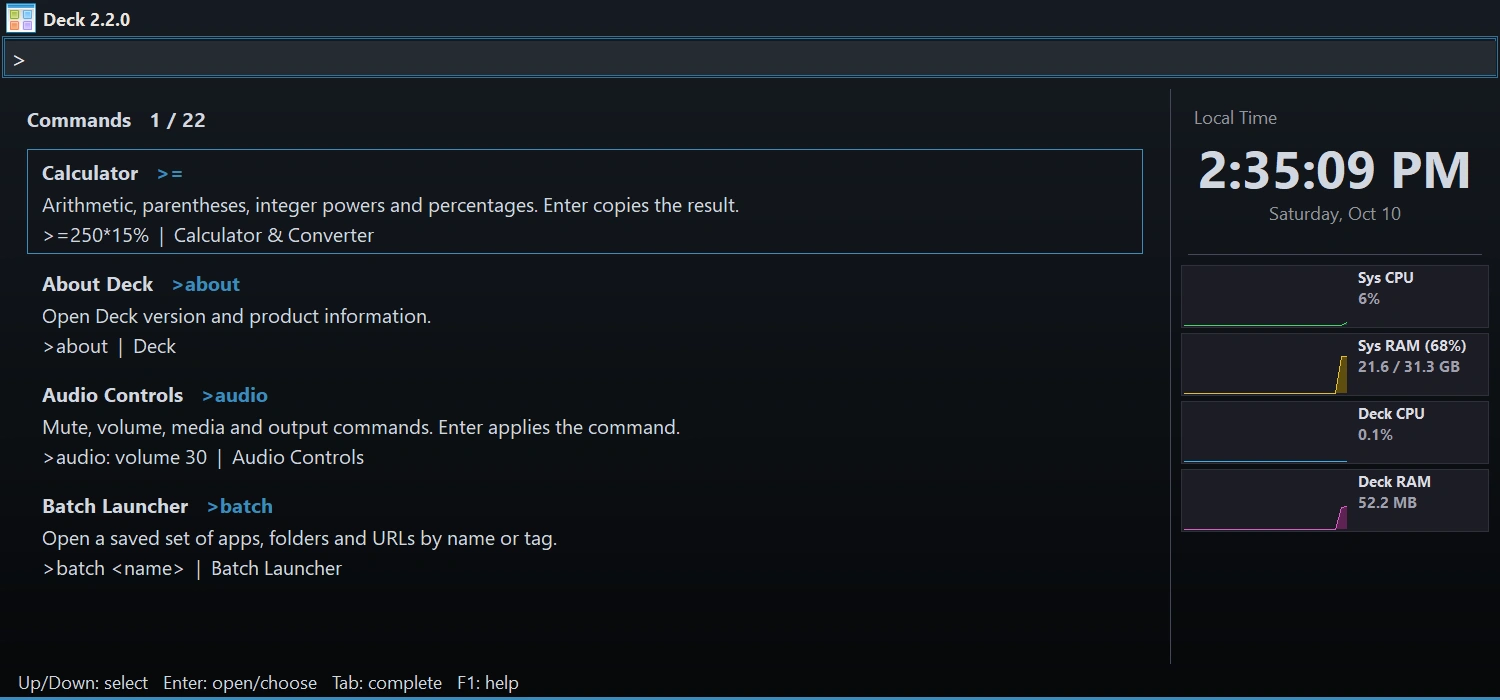
Type > in search, or press Ctrl+K while Deck is focused, to browse the built-in and enabled plugin commands. Use Up/Down to select a command and Tab/Enter to complete its input. Add any arguments, check the preview, then press Enter or click the ready preview to execute. Typing alone never launches a command.
- Built-in commands open Options, themes, Manage Plugins, About, Manage Groups, and Manage Shortcuts.
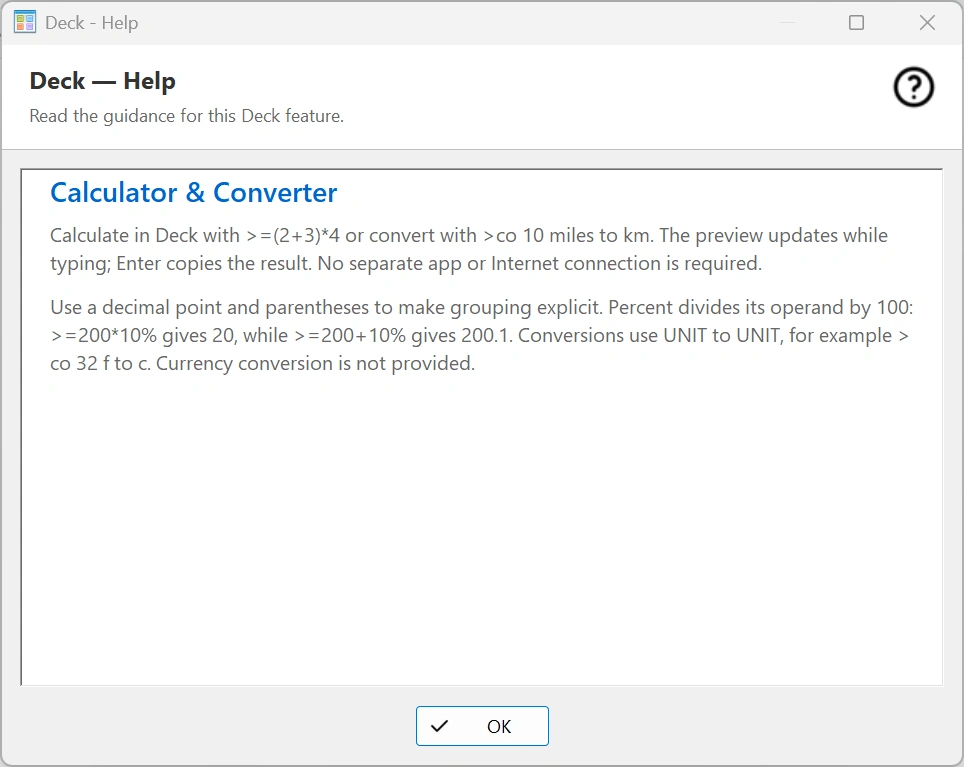
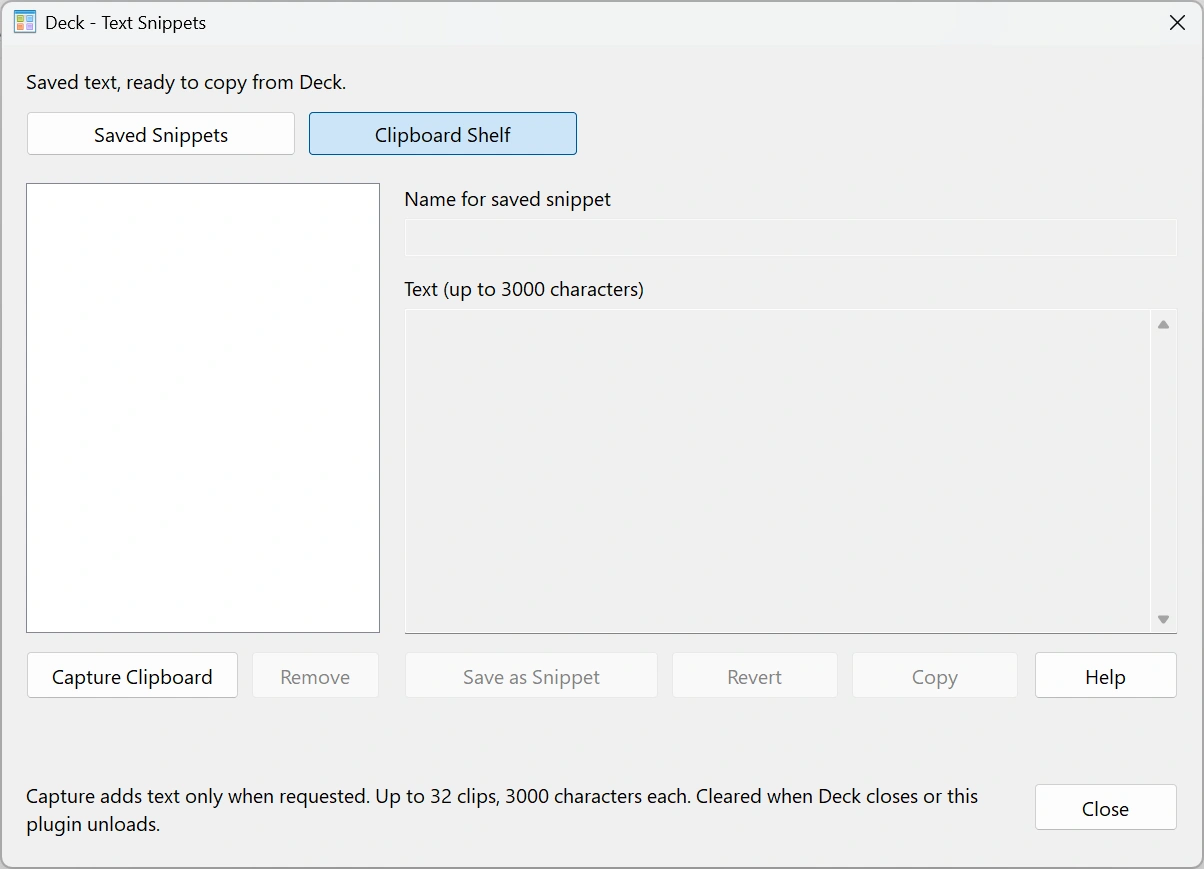
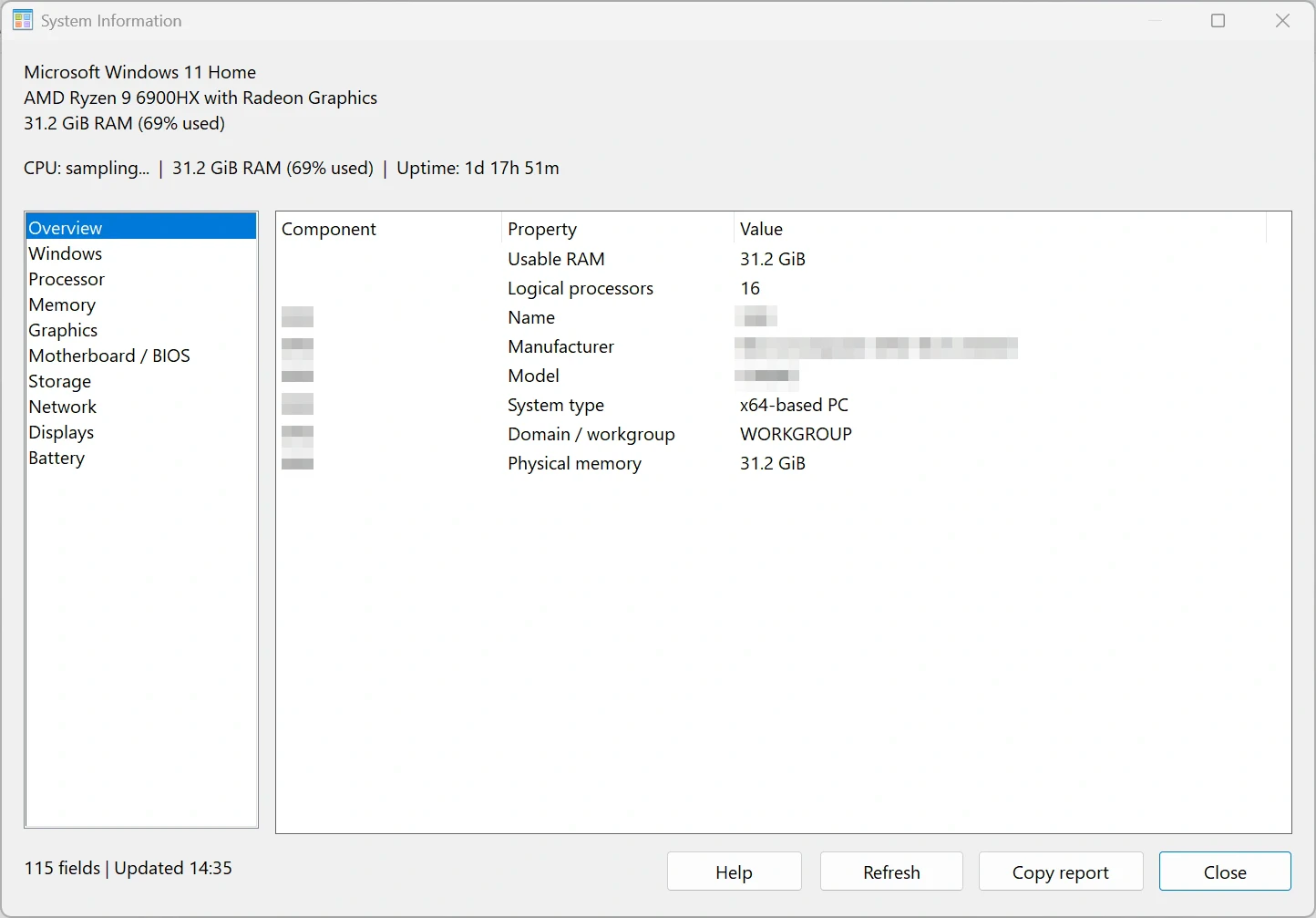
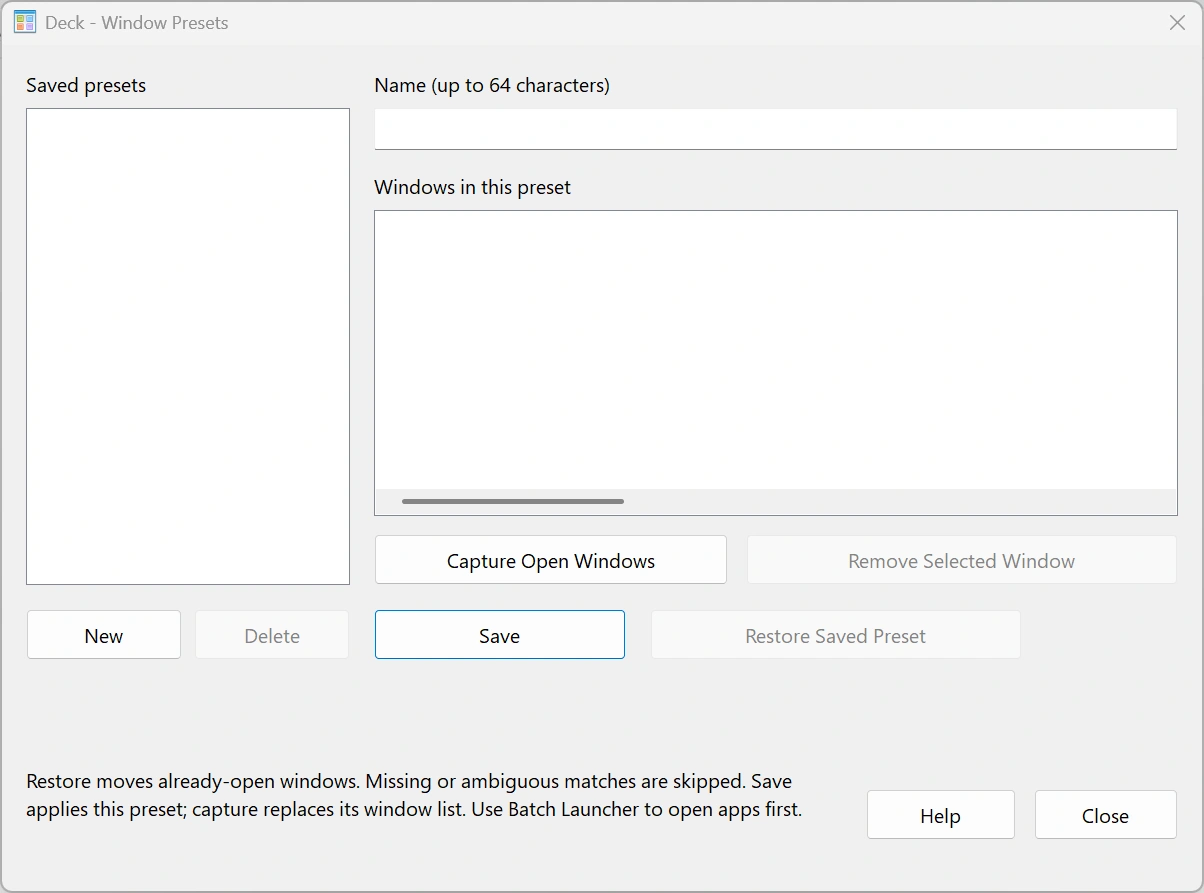
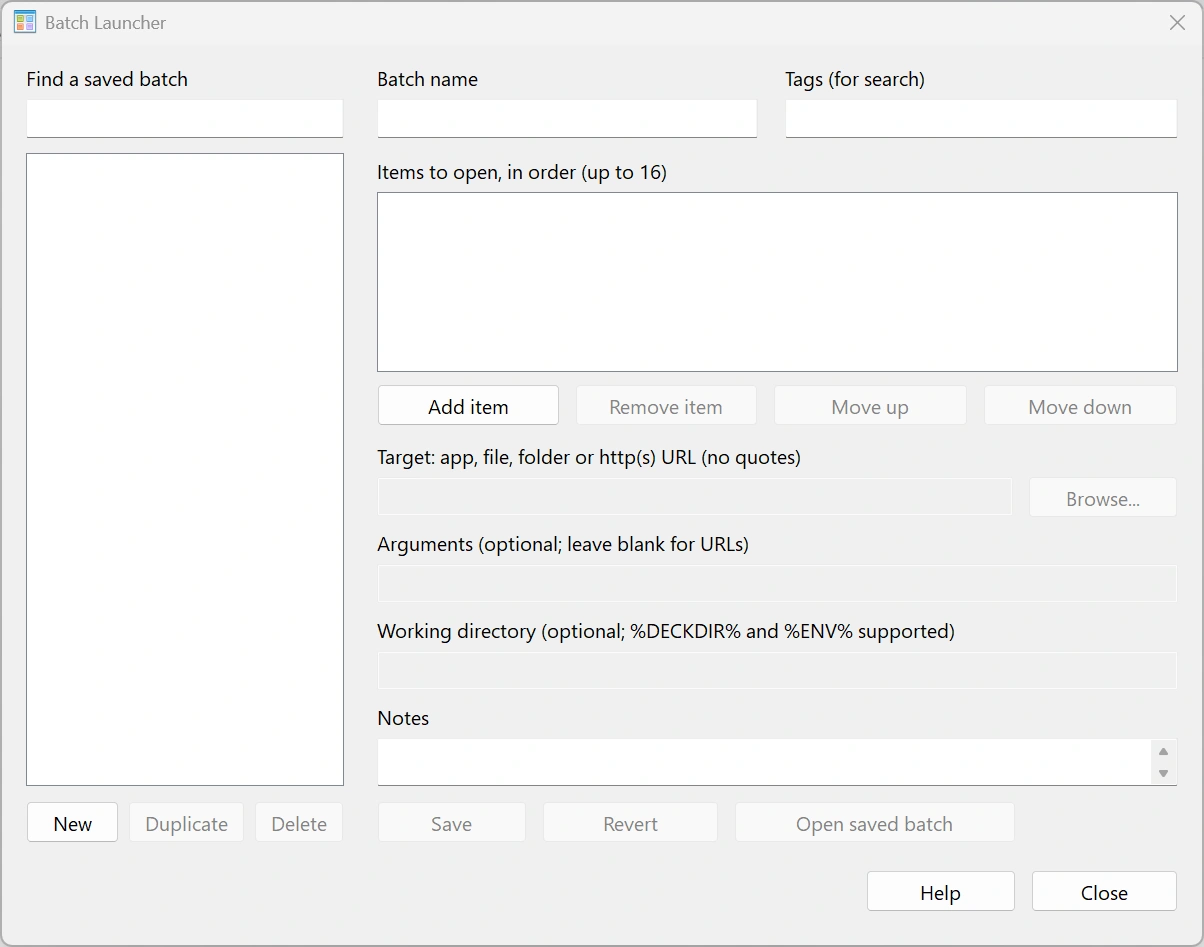
>run notepad.exe,>cmd dir, and>ps Get-Dateuse Command Runner.>=250*1.15previews a calculation;>co 10 miles to kmpreviews a conversion. Enter copies the result.>sn signaturecopies a saved snippet;>clipopens the temporary Clipboard Shelf.>batch Morning checks,>server Production RDP, and>layout Workuse your saved definitions.>ev report,>recent report,>downloads invoice, and>sysinfoopen the corresponding tools.
Normal text filters shortcuts. All plugin commands require > and a loaded plugin. The old >notepad.exe form now shows guidance; use >run notepad.exe. Change or clear the in-app command hotkey in Options → Hotkeys.
Right-click an empty area in Deck to add a file or program, folder, URL, or drag-and-drop batch. The same actions are available from the tray menu and Manage Shortcuts.
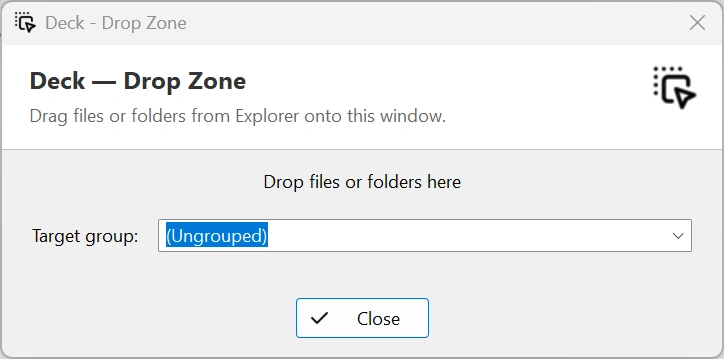
- Drag one or several files or folders from Explorer into Deck's Drop Zone.
- Enable the optional Explorer command under Options → General to add files and folders from their right-click menu.
- Edit a shortcut to change its label, target, arguments, icon, group, or Run as Administrator setting.
- Add horizontal or vertical dividers when you need visual separation.
- Installed plugins may publish actions that can be added as normal clickable shortcuts.
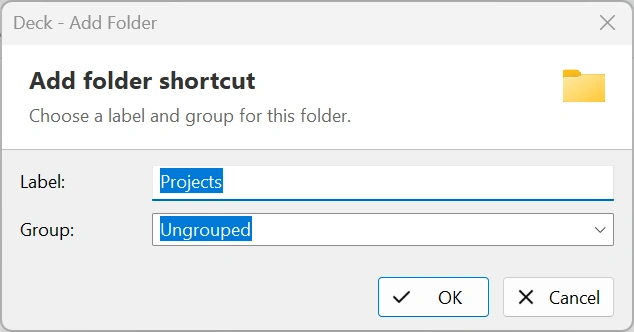
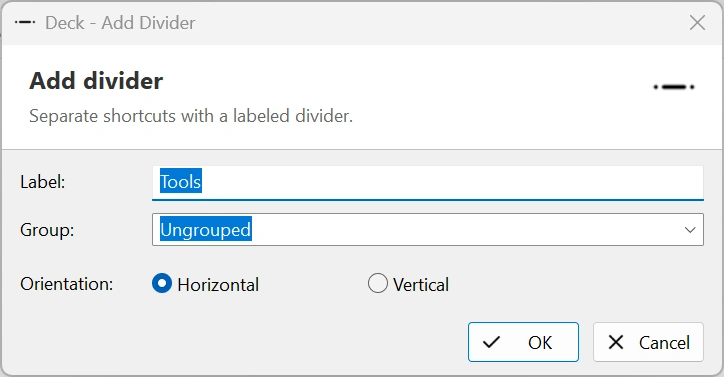
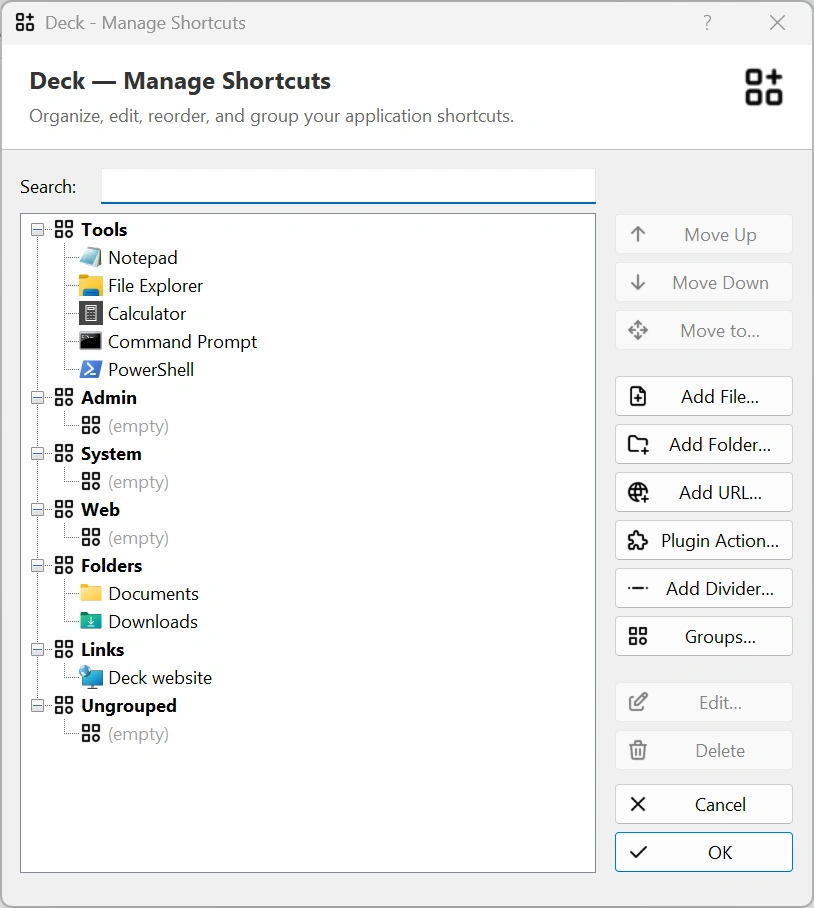
Open Manage Shortcuts to search, edit, reorder, and move entries. Use Ctrl+Click or Shift+Click to select several shortcuts and move them together. You can also drag items within the tree or between groups.
Open Manage Groups to rename, recolor, reorder, disable, restore, or delete groups. Disabling a group hides it and its shortcuts without losing any data. When deleting a populated group, Deck can move its shortcuts to Ungrouped instead of deleting them.
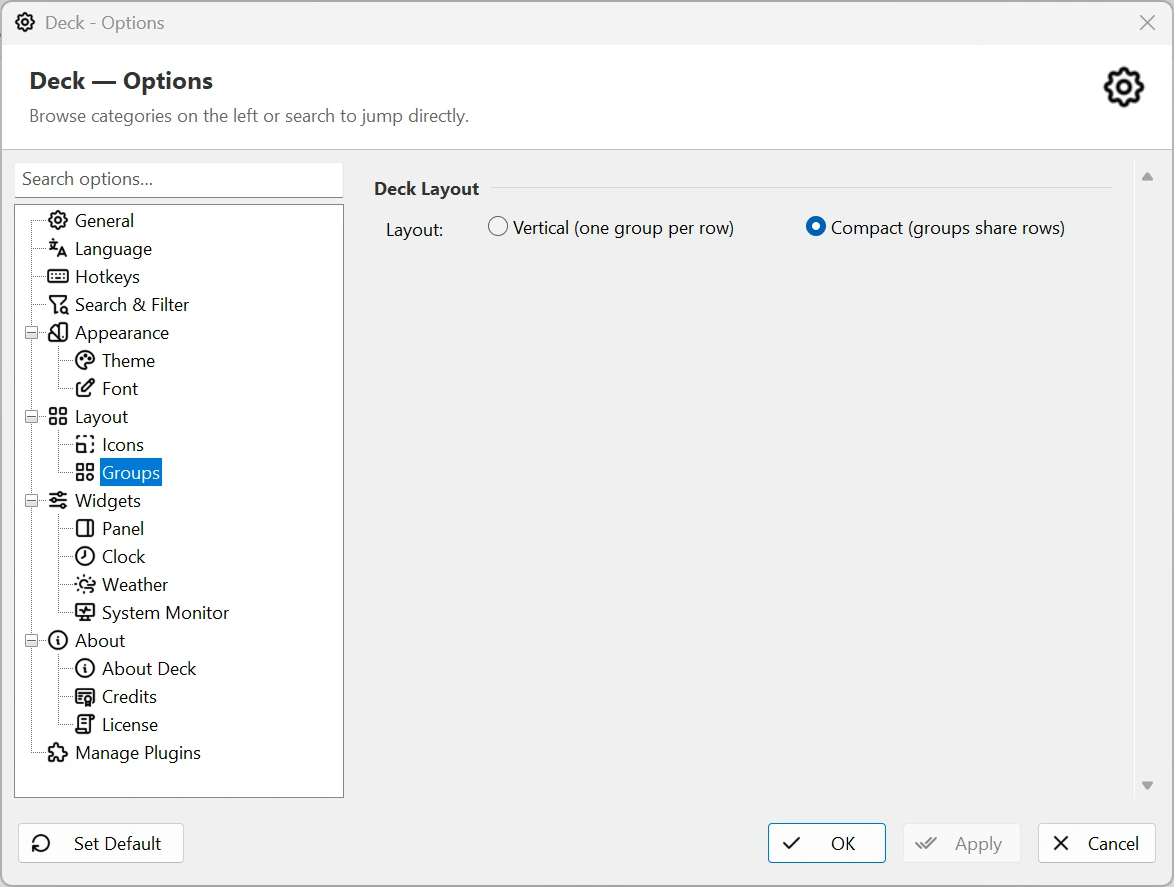
Compact layout lets groups share rows; vertical layout puts one group on each row. Lock the layout when you want to prevent accidental moves.
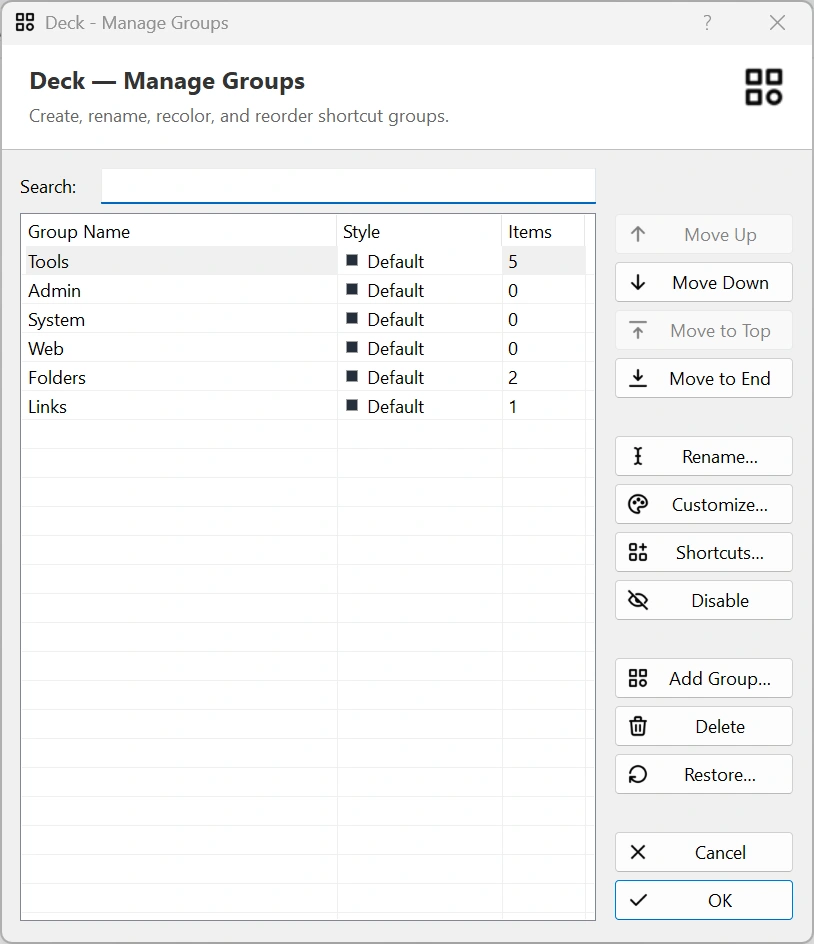
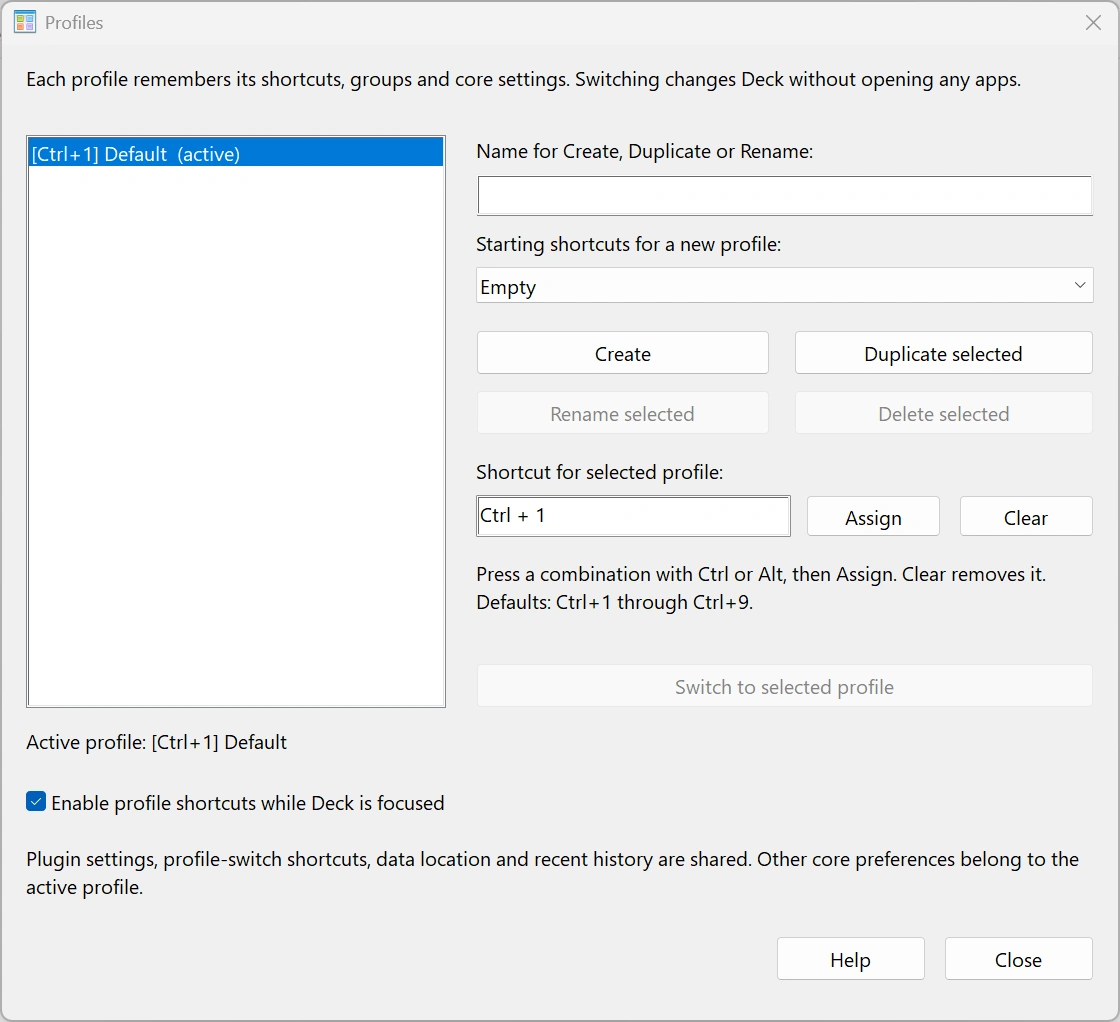
Open the Profiles plugin from the plugin menu or its Configure button to create, duplicate, rename, or switch profiles. Each profile owns its shortcut library, empty groups, group order and visibility, plus core preferences: Compact/Vertical layout, themes, fonts, icons, language, hotkeys, search, edge triggers, clocks, and weather locations. New profiles inherit committed preferences; duplicates inherit the source profile.
The Default profile keeps your existing library. Optional starter collections populate new profiles without overwriting existing ones. Profile shortcuts work only while Deck is focused and outside modal editors; the first nine profiles receive Ctrl+1 through Ctrl+9 when those keys are available.
Explorer’s Add to Deck uses the active profile, even when Deck is closed. Switching from inside Options discards its pending edits and reloads the destination profile. Plugin configuration and enable state, recent history, and data location remain shared. Disabling Profiles leaves the active library available.
Back up profiles.json, every profile-*.json, their .bak files, and your normal Deck data. Registry-only mode stores the same collections in the Registry without creating profile files.
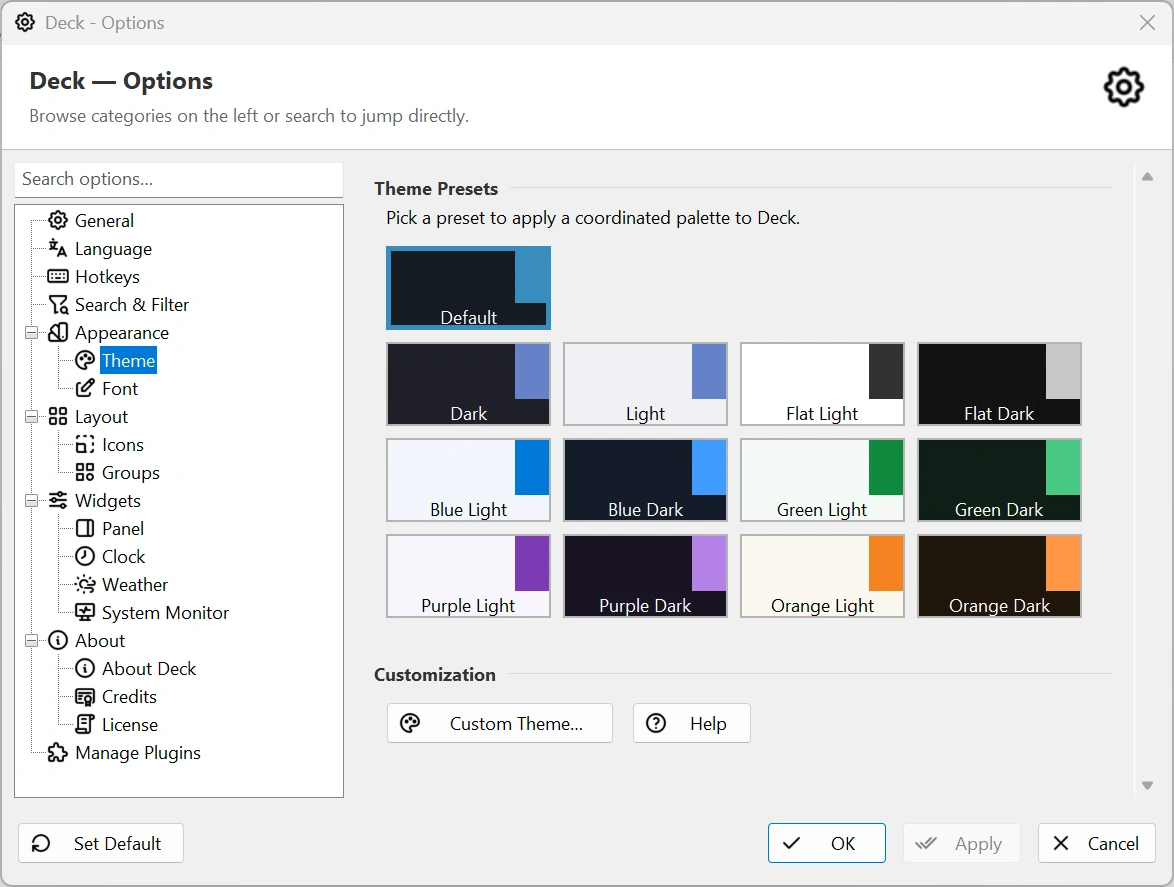
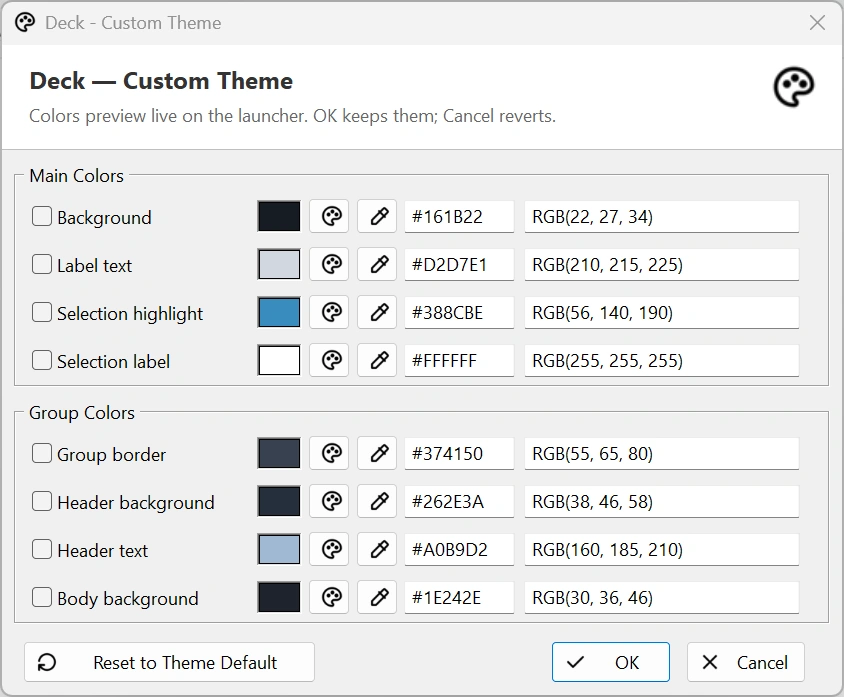
Deck includes coordinated light and dark presets for several color families. Select Custom Theme to edit the global background, labels, selection, borders, headers, and group body colors with live preview. Each preset remembers its own customization.
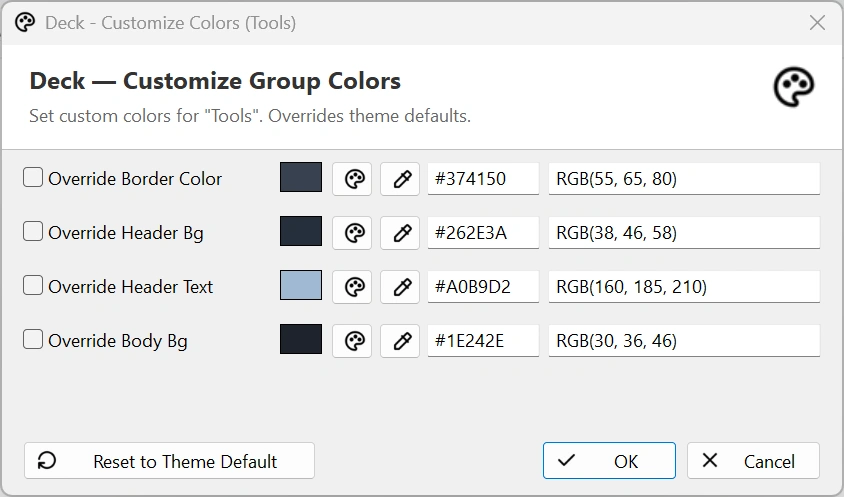
Choose a shortcut-label font, set icons from 16 to 256 pixels, switch between compact and vertical group layouts, and adjust transparency and animation speed. Individual groups can override the current theme's border, header, text, and body colors.
Options separates visual sizing from color themes so each can be tuned independently.
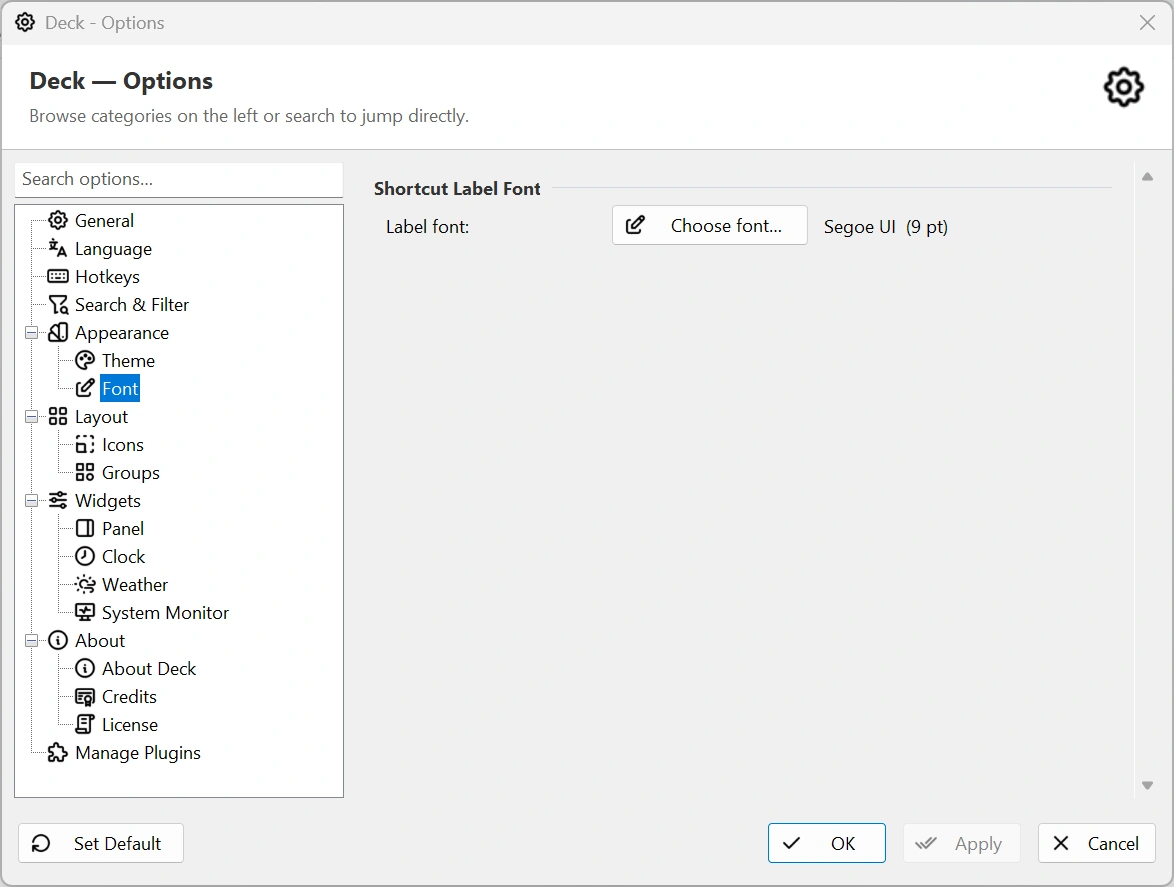
- Appearance → Font chooses the shortcut-label typeface and point size.
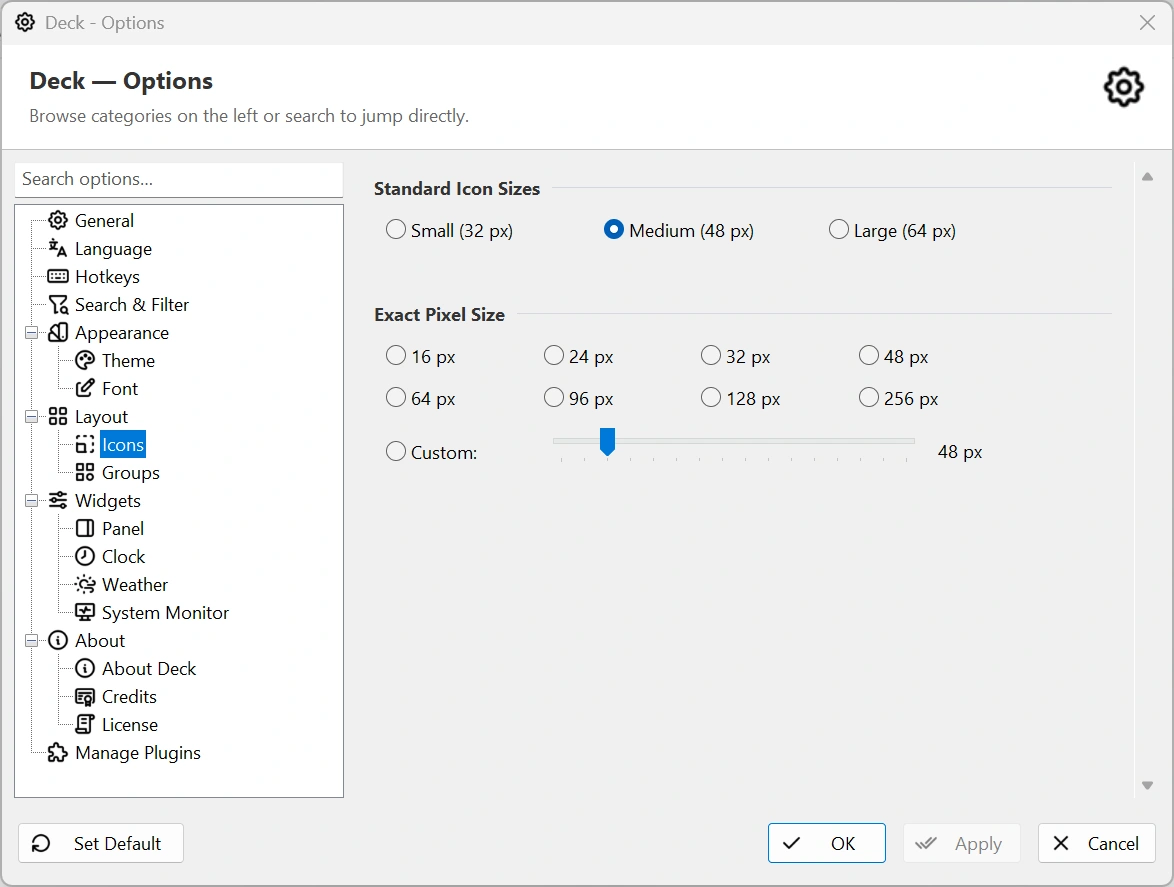
- Layout → Icons offers standard 32, 48, and 64 pixel sizes, exact 16–256 pixel choices, and a custom slider.
- Layout → Groups switches between Vertical, with one group per row, and Compact, where groups share rows.
Large icons are easier to recognize but reduce the number of visible shortcuts. Compact groups make better use of wide or multi-monitor desktops; Vertical groups keep each category visually distinct.
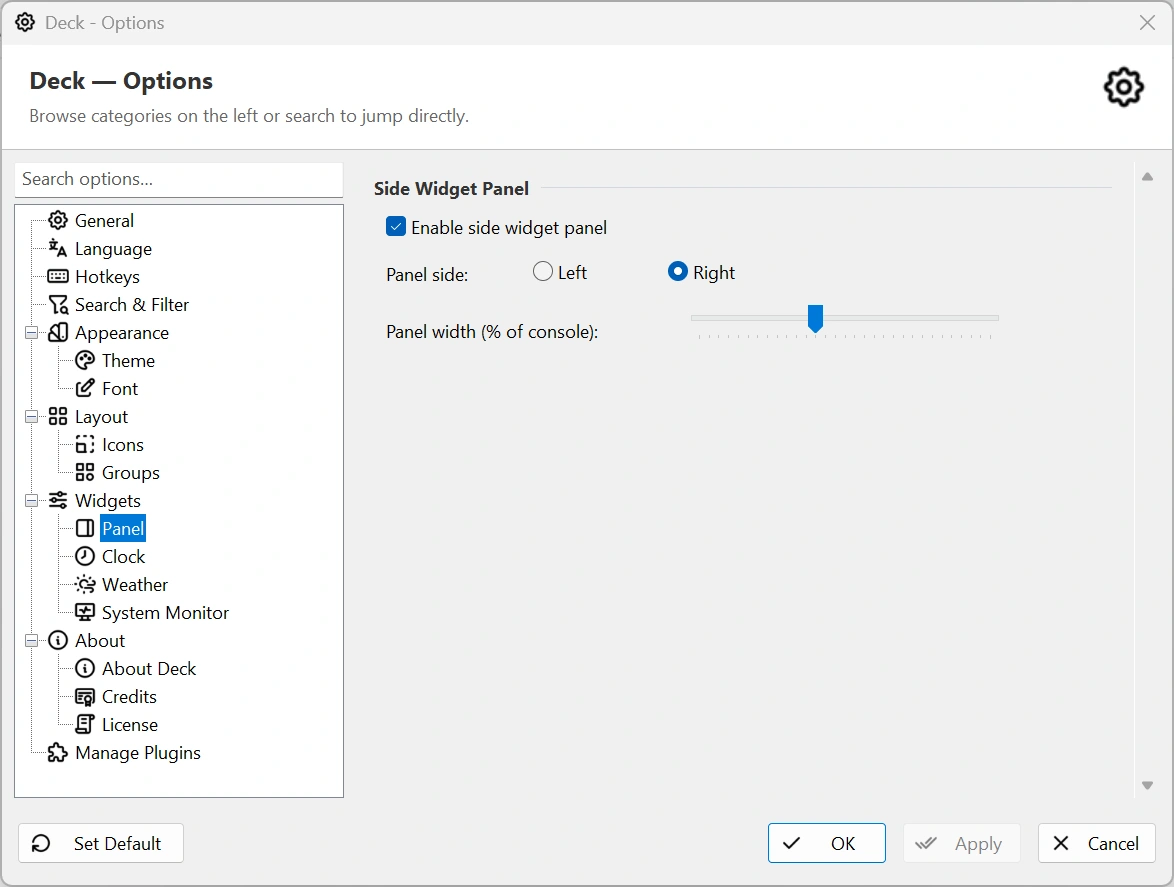
Enable the panel under Options → Widgets → Panel, place it on the left or right side, and set its width as a percentage of the launcher. Enable clocks, weather, and system graphs on their individual pages. Reorder entries by dragging or with widget movement commands.
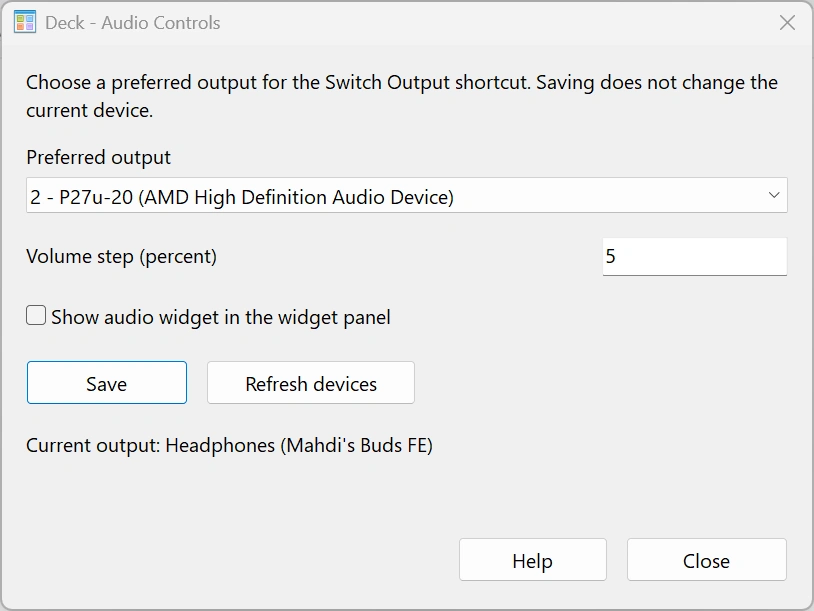
Deck 2.2 also supports live plugin widgets. For Audio Controls, enable Show audio widget in the widget panel in the plugin’s Configure window; it starts disabled for new settings. The widget offers volume, mute, output selection, and playback controls. The main panel must also be enabled. Keyboard navigation can move between the grid and widget controls.
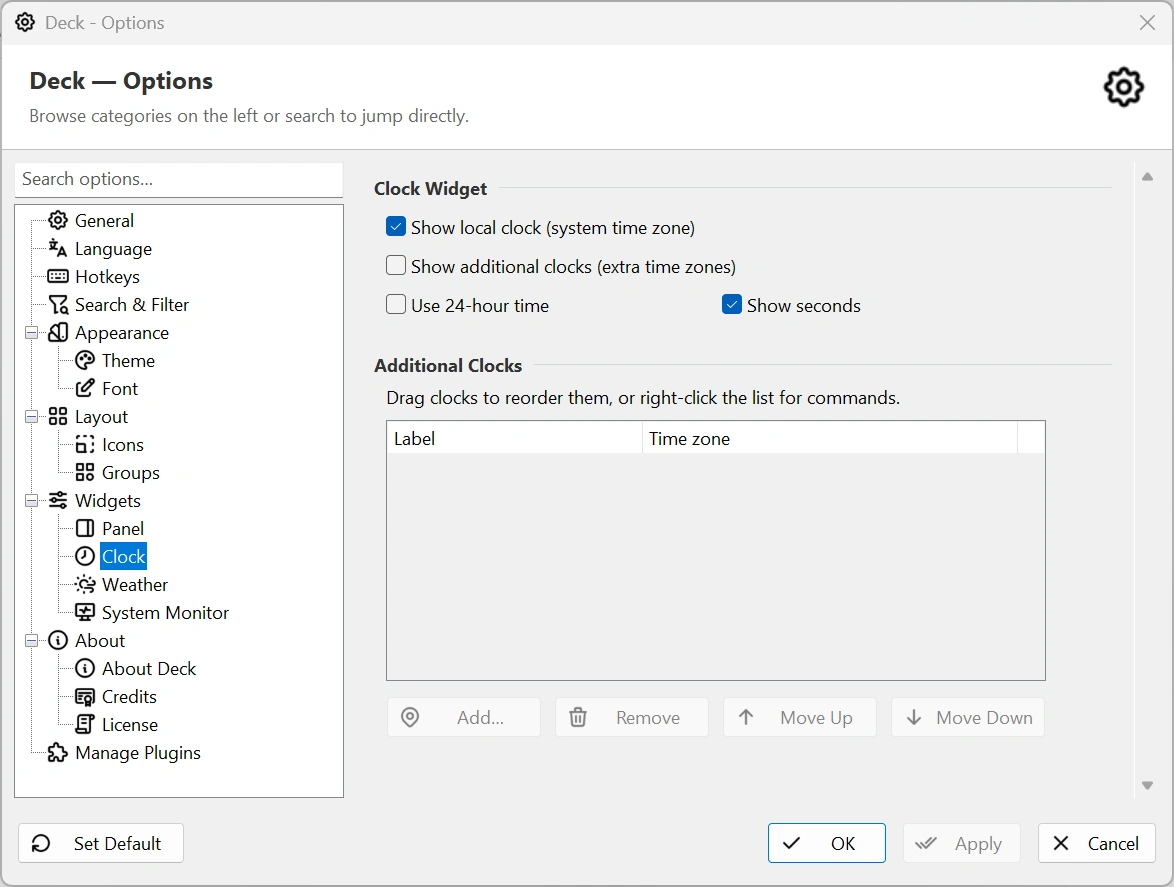
Options → Widgets → Clock controls the local system clock and any number of additional time zones. You can show local time, use 24-hour format, display seconds, and reorder extra clocks.
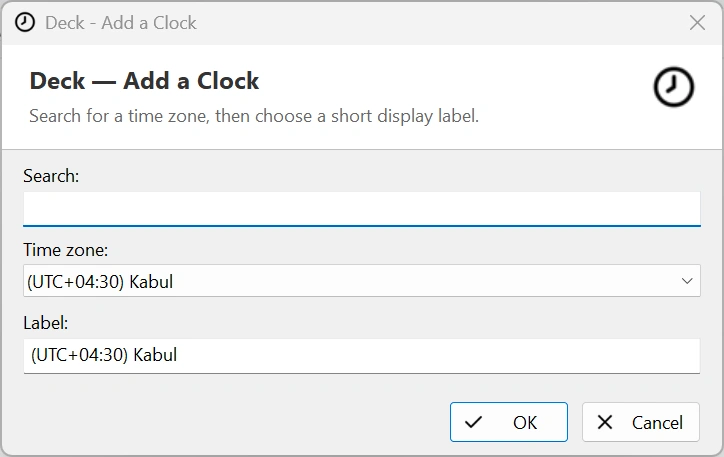
To add a clock:
- Choose Add.
- Select a Windows time-zone identifier.
- Enter a clear label such as a city, office, or team name.
- Confirm, then move the clock to the desired order.
Additional clocks use Windows time-zone data, including daylight-saving rules when the selected zone provides them.
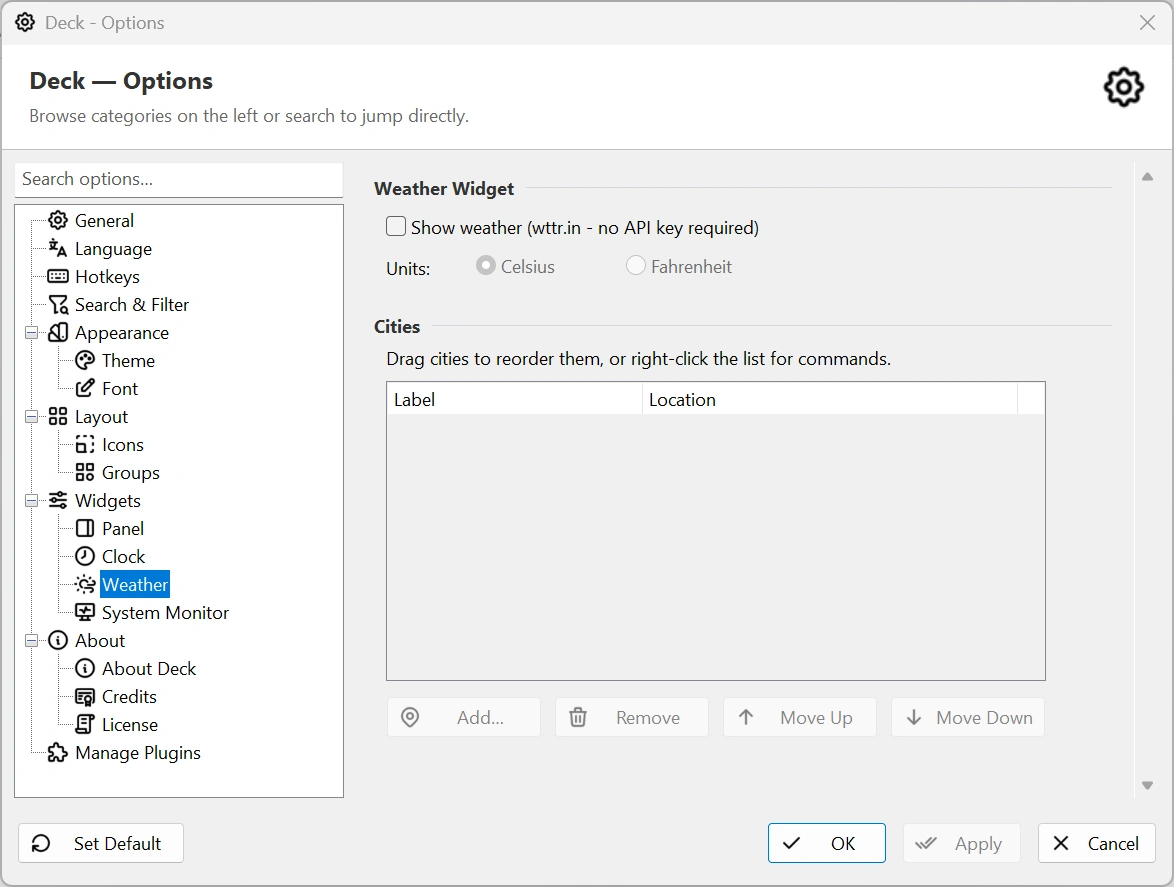
Options → Widgets → Weather enables forecasts supplied by wttr.in without an API key. Choose Celsius or Fahrenheit and add one or more locations.
Each weather entry has two values:
- Location is the query sent to wttr.in. A city, region, airport code, or postal code can be used.
- Label is the friendly name shown in Deck.
Drag cities to reorder them, or use the list commands to add, remove, and move entries. Weather needs internet access; the rest of Deck continues to work when the service is unavailable.
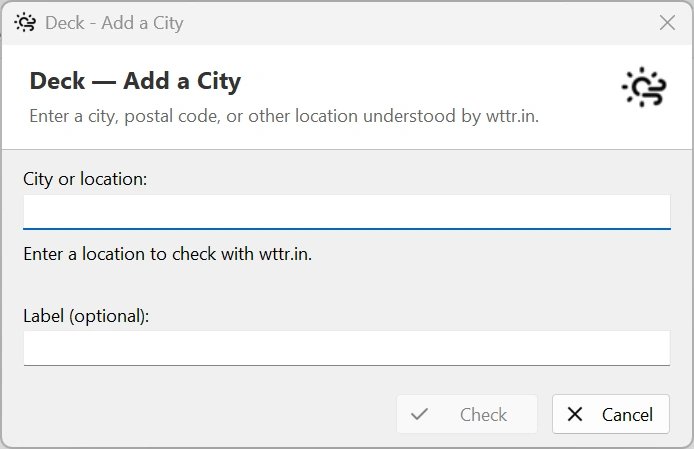
Options → Widgets → System Monitor enables live CPU and RAM graphs for the whole computer and for Deck itself. The panel reports system CPU, system memory, Deck CPU, and Deck working-set memory.
Use these graphs to spot a sustained resource spike, compare Deck with total system load, or capture useful context for a performance report. Readings are informational and update while the widget panel is visible.
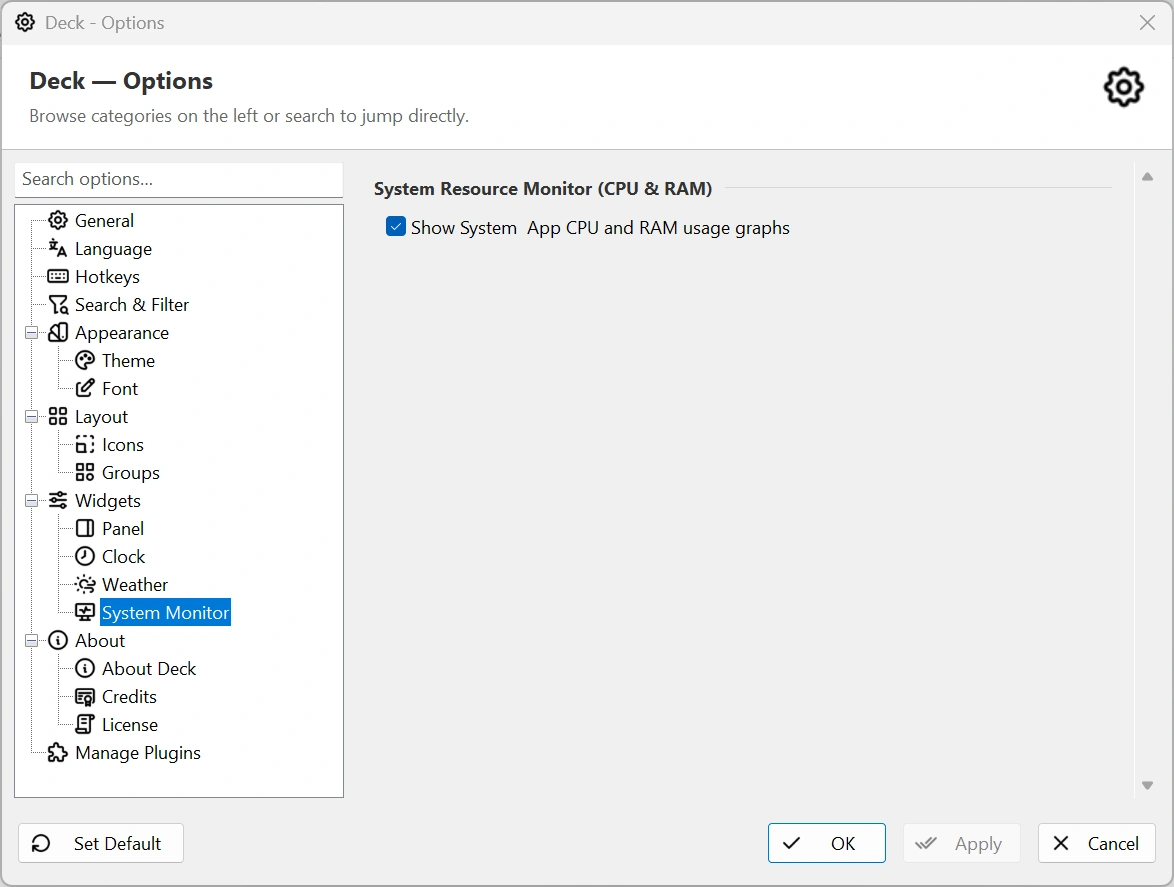
Open Options → Manage Plugins, or Manage Plugins from a context menu, to search installed plugins and install, remove, enable, disable, reload, configure, or inspect them. Use only DLLs matching your Deck architecture: _x86.dll for Win32 or _x64.dll for Win64.
Deck 2.2 plugins provide shortcut actions, explicit > commands, menu tools, and optional live widgets. The release includes:
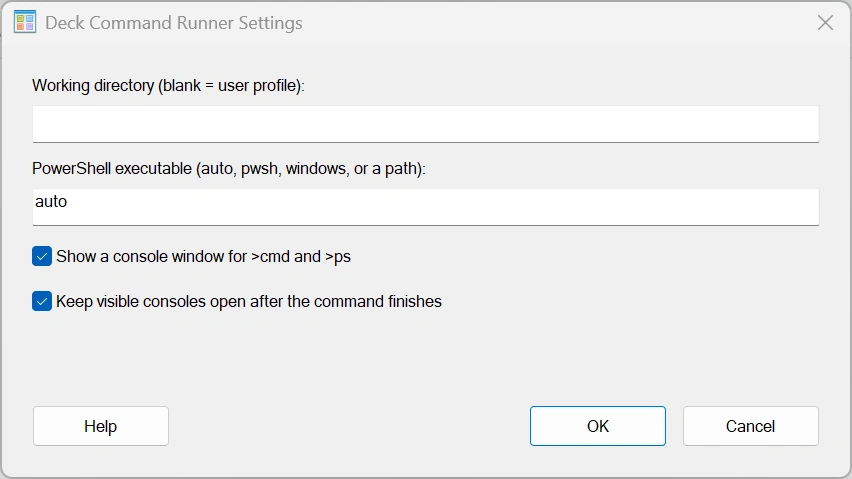
- Command Runner: Windows Run, Command Prompt, and PowerShell.
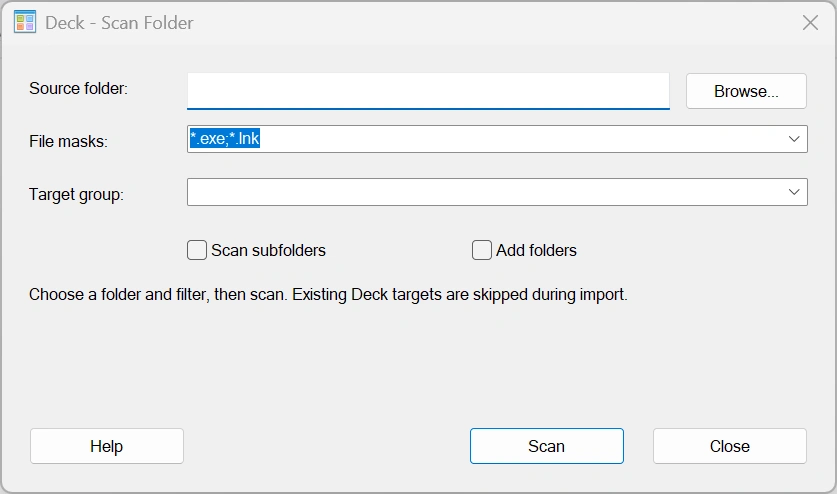
- Folder Scanner: review and import files as shortcuts.
- Window and Workspace Manager: window actions and saved layouts.
- Calculator & Converter: arithmetic and offline unit conversion.
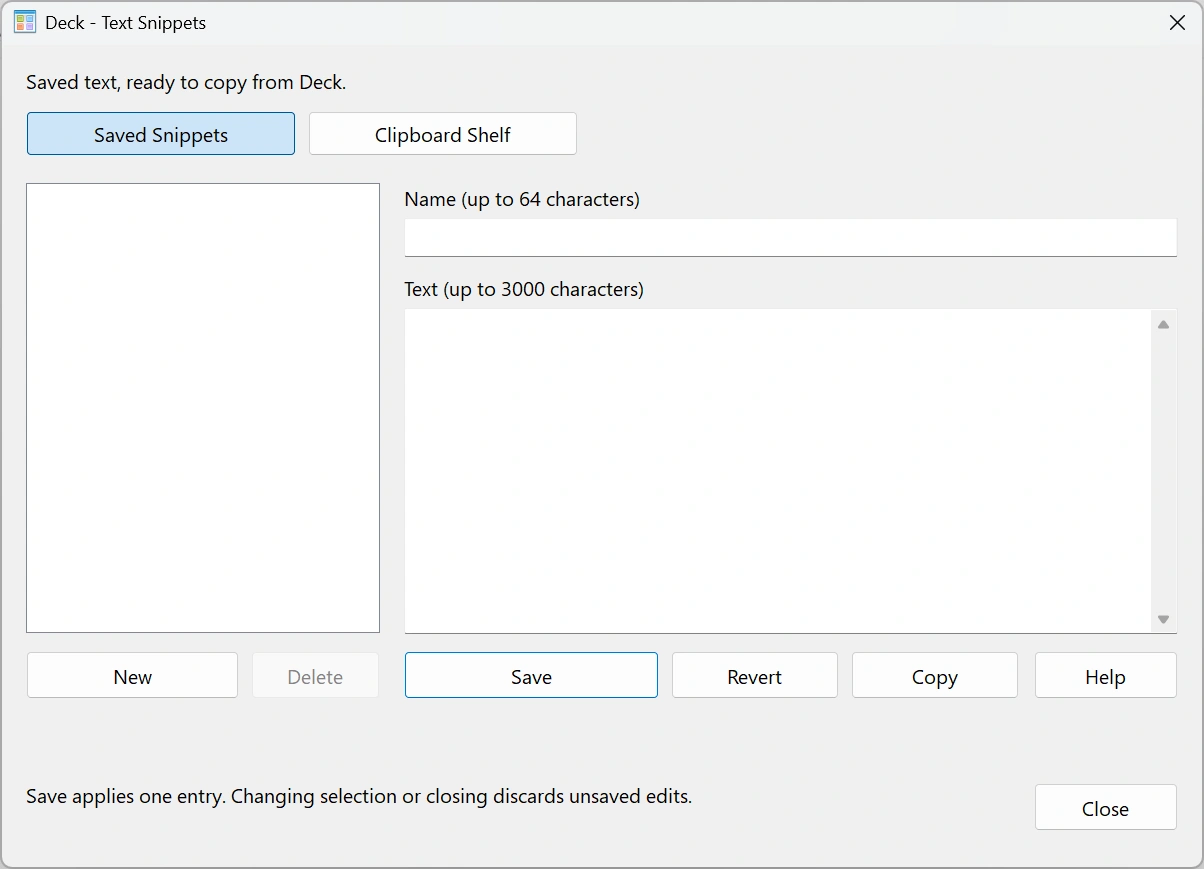
- Text Snippets: saved text and an explicit-capture Clipboard Shelf.
- Audio Controls: volume, mute, playback, output selection, and an optional widget.
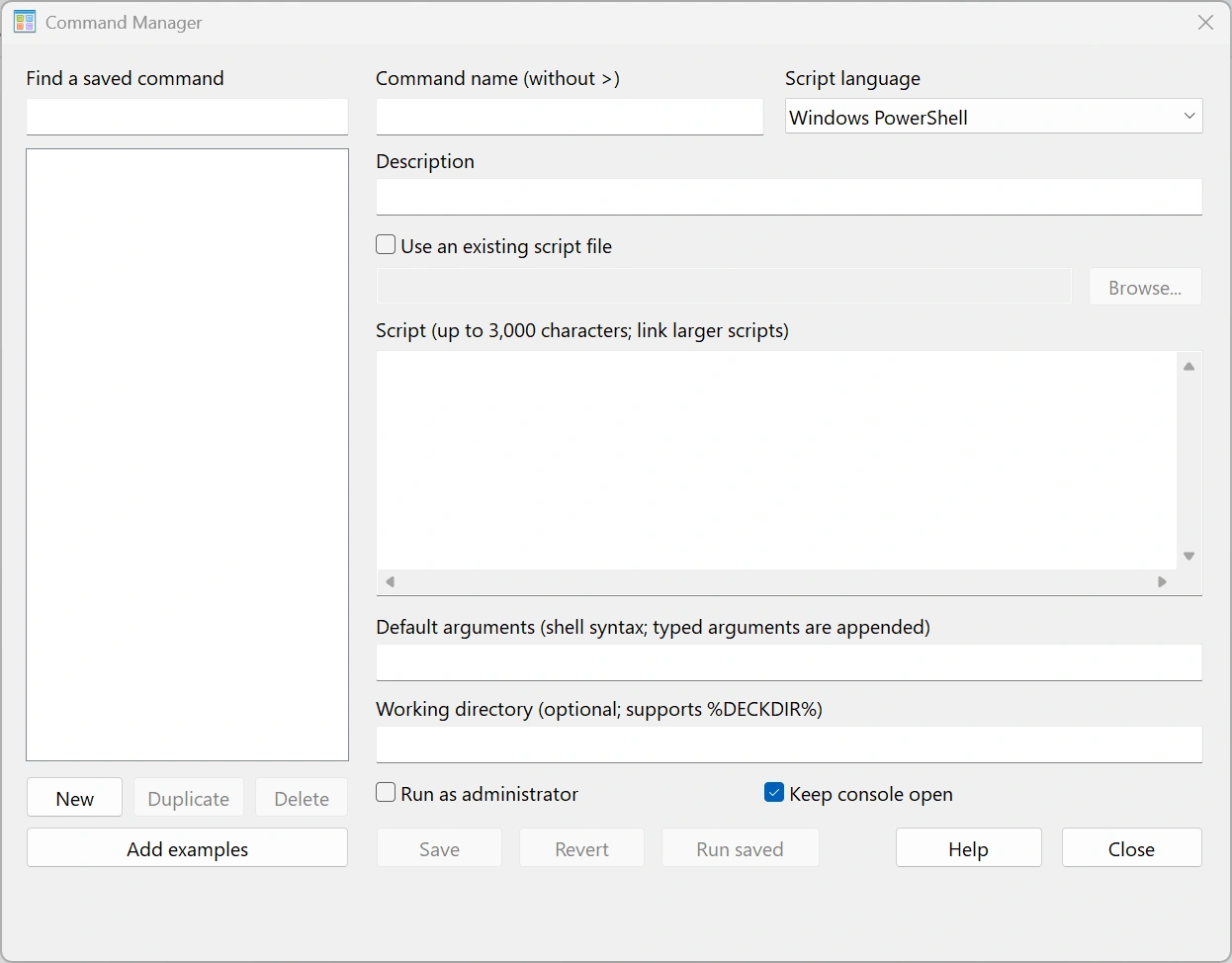
- Command Manager: saved PowerShell/Batch scripts or linked files.
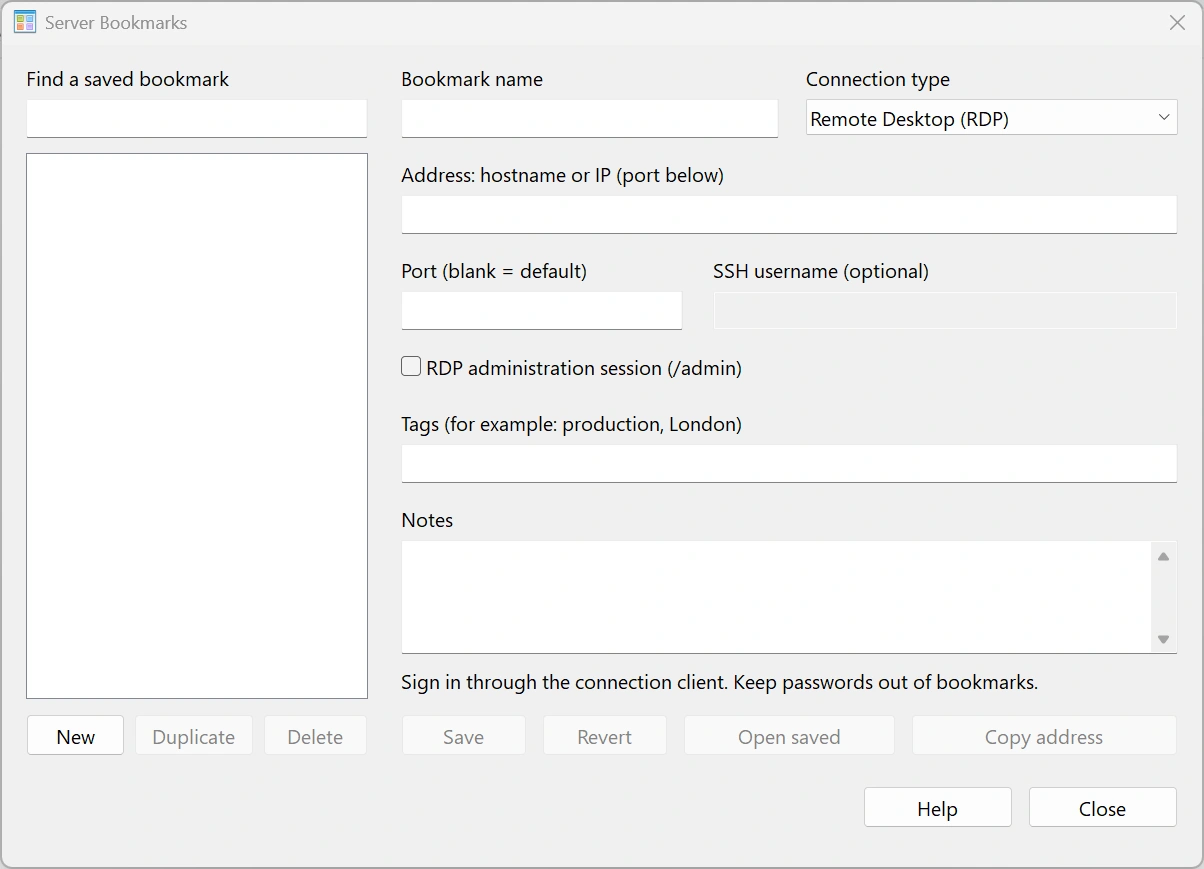
- Server Bookmarks: RDP, SSH, shared folders, and web consoles.
- Batch Launcher: open ordered sets of apps, files, folders, and URLs.
- Profiles: independent libraries and core preferences.
- System Information: Windows/hardware inventory and live usage.
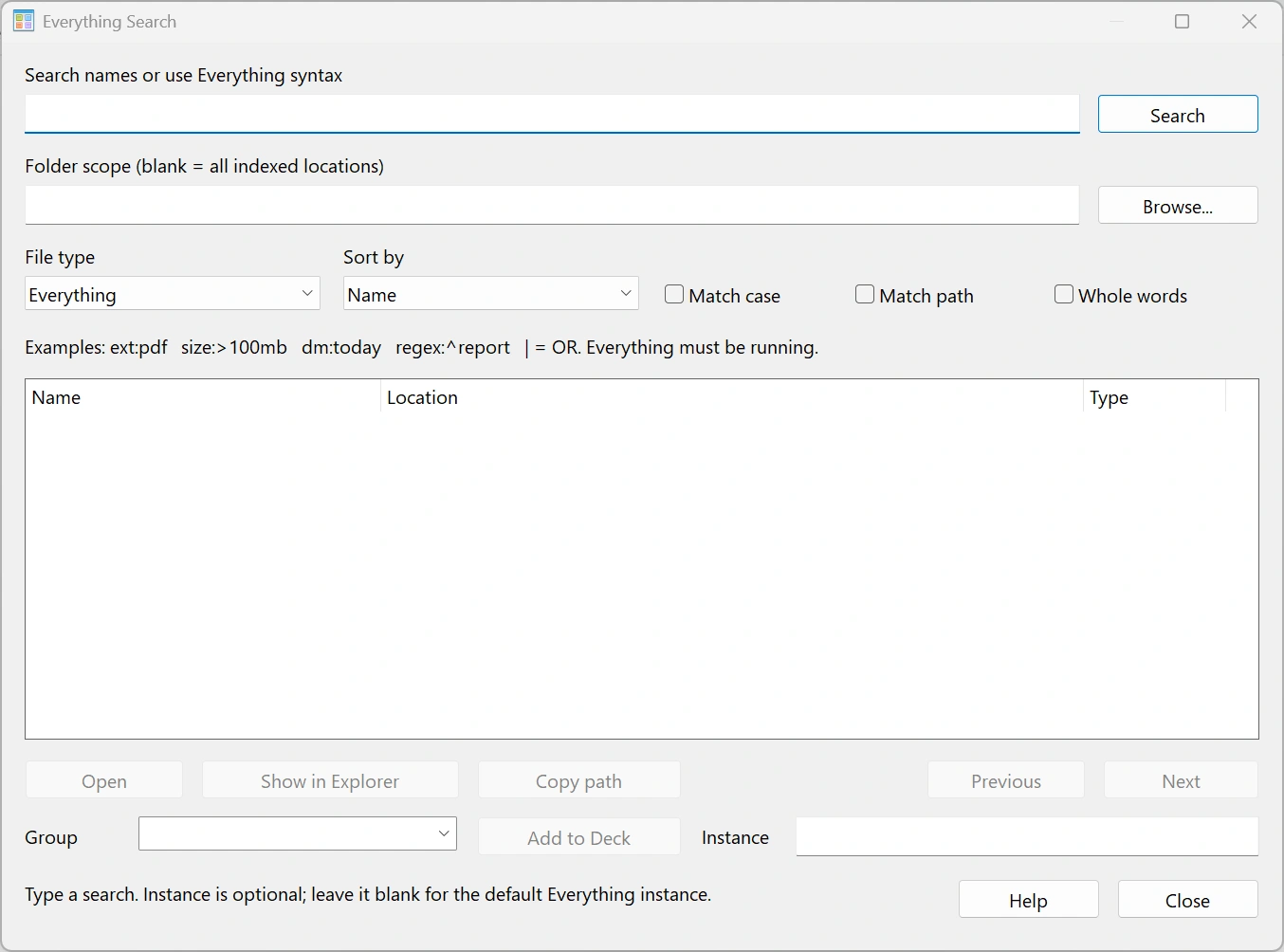
- Everything Search: indexed file search through a running Everything 1.4.1+ application.
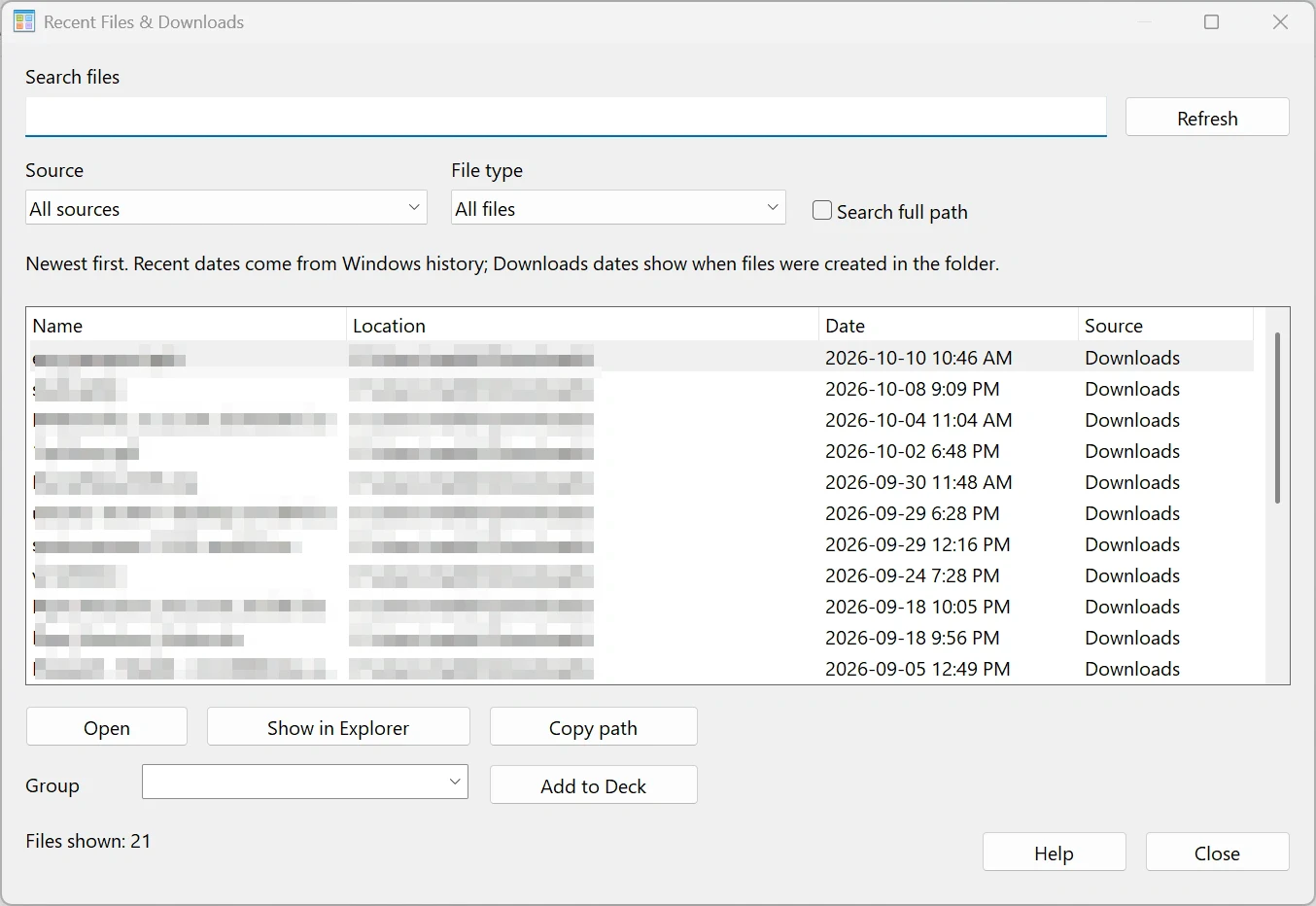
- Recent Files & Downloads: browse Windows Recent items or the Downloads folder.
Plugin settings follow the active data backend; DLLs stay beside Deck in plugins. Help/F1 opens shared plugin guidance. Audio’s widget starts disabled: enable it in Audio Controls → Configure and also enable Deck’s widget panel.
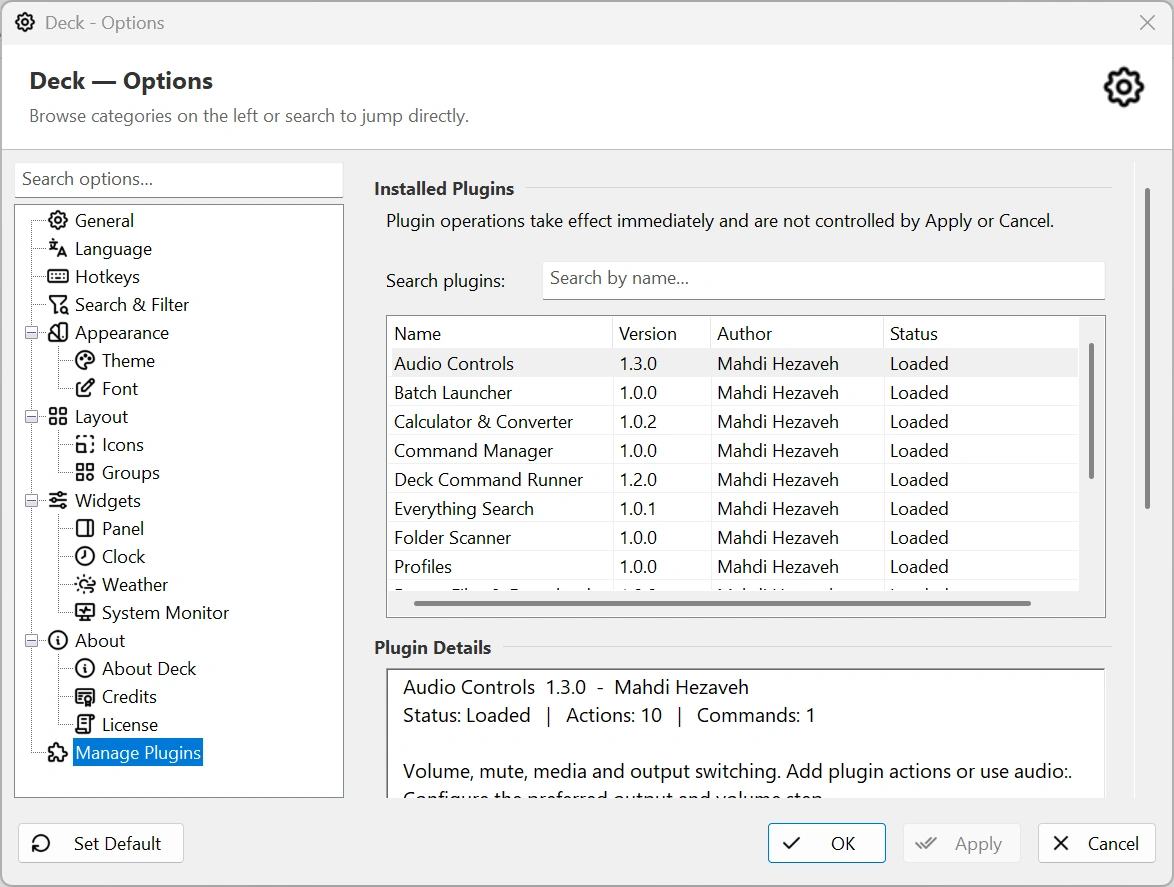
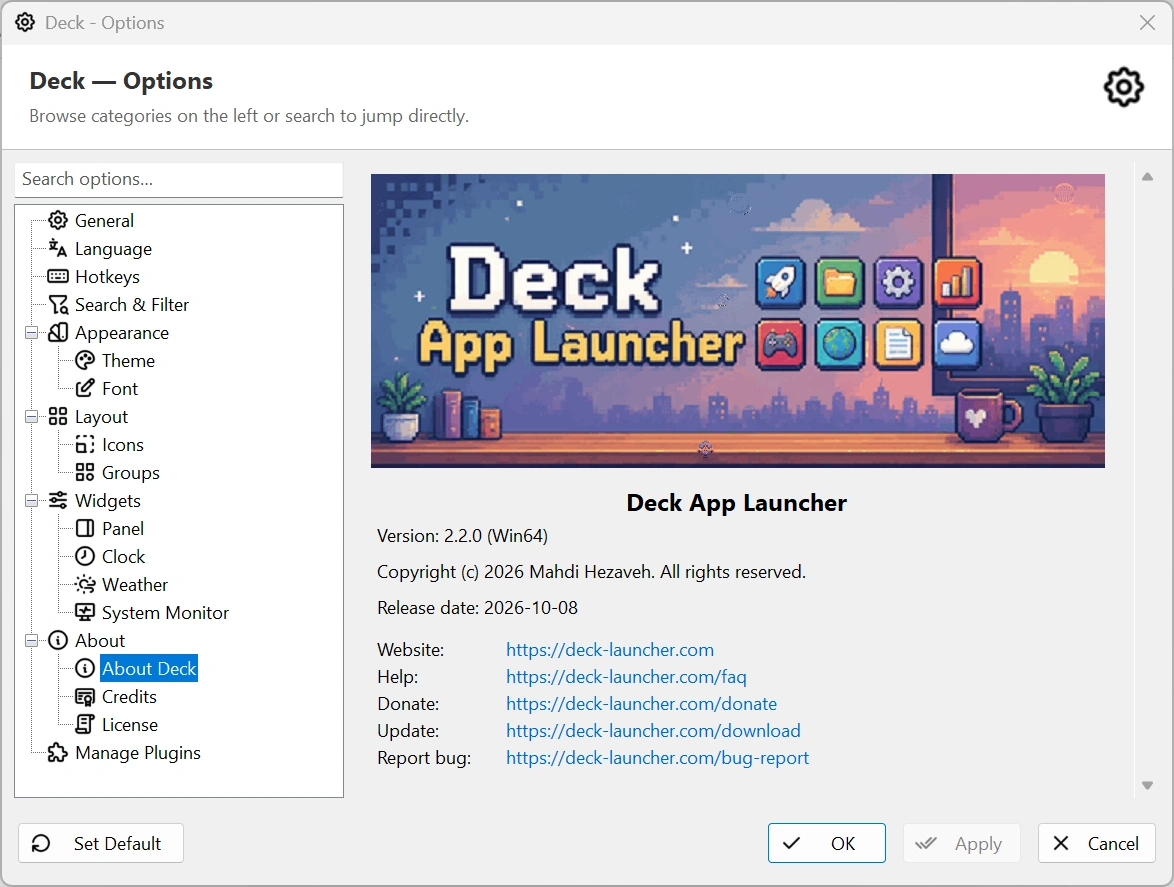
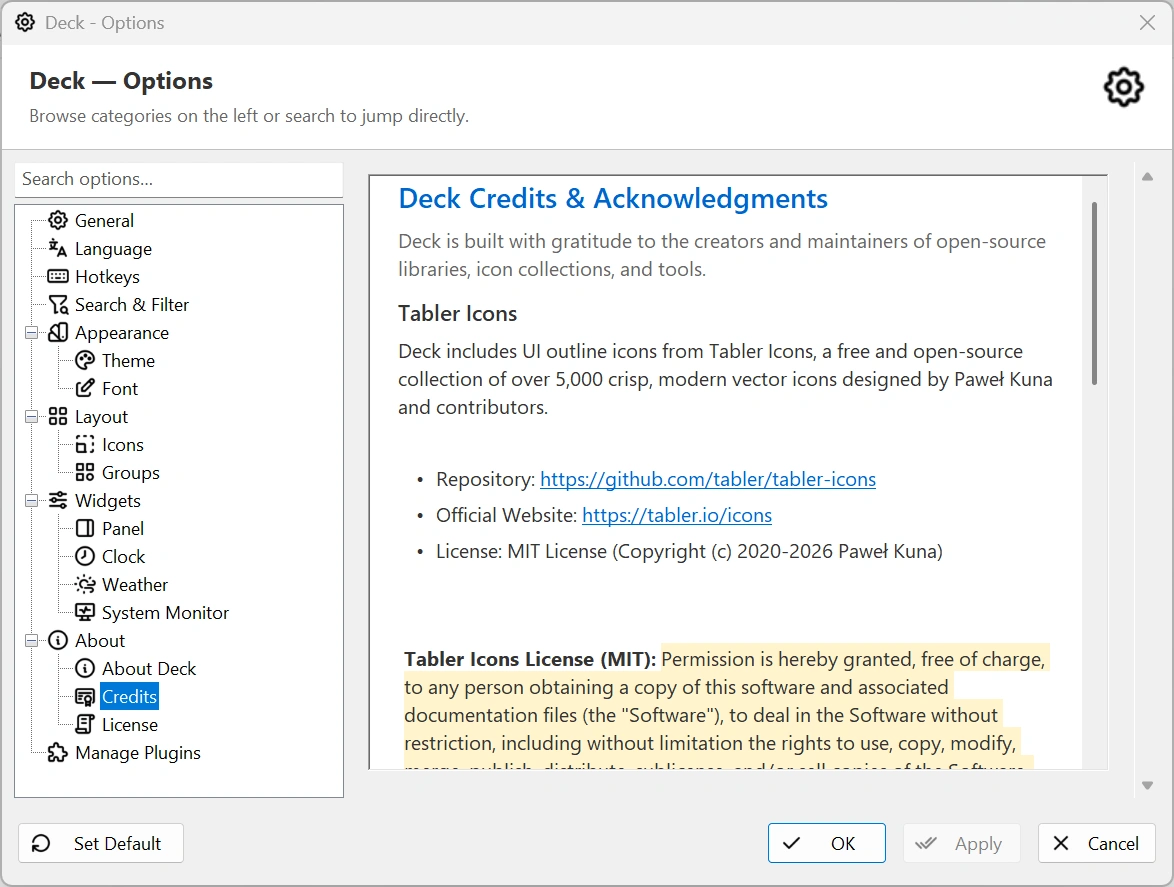
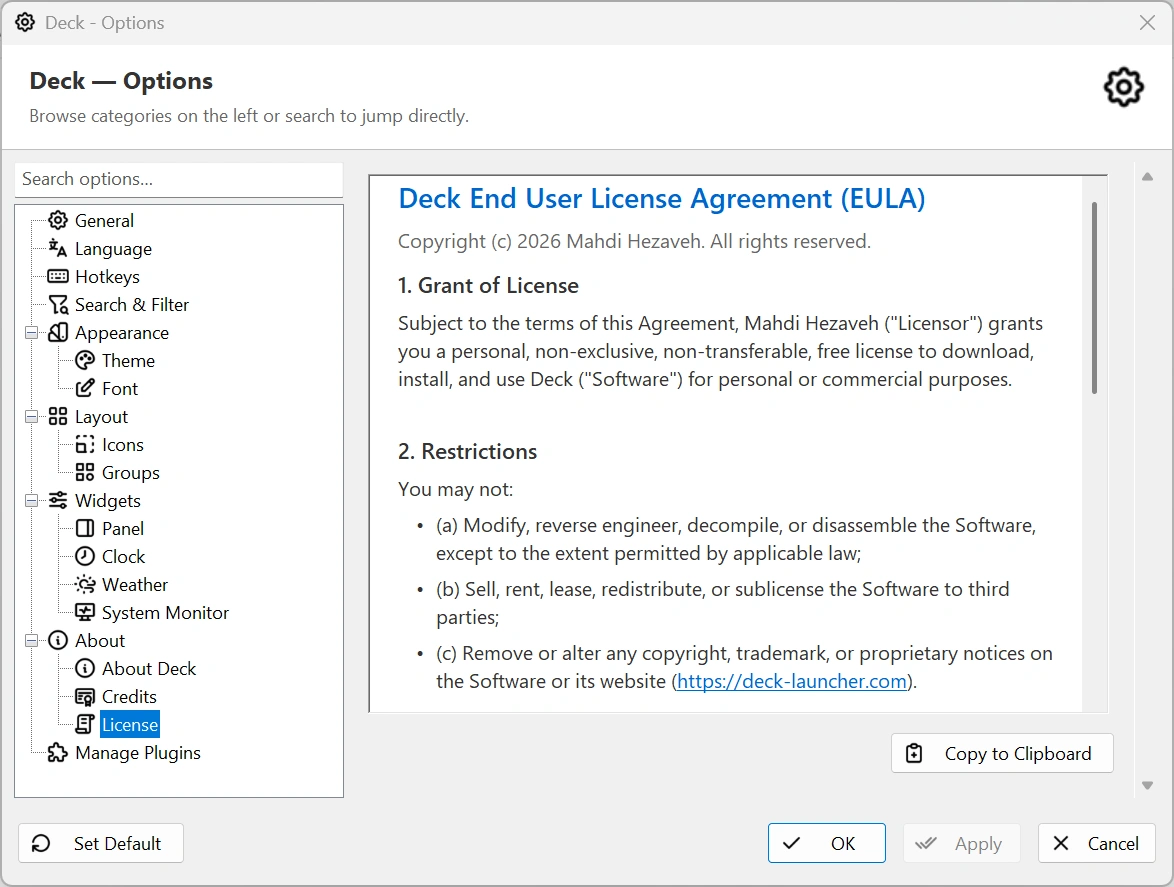
The About branch in Options records the exact Deck version and architecture, release date, official website, help, donation, update, and bug-report links. Credits lists the open-source components and services used by Deck, while License displays the Deck End User License Agreement and third-party license notices.
Check About Deck before downloading a plugin or reporting a problem: Win32 and Win64 use different native plugin DLLs, and the exact version helps identify whether an update already contains a fix.
Deck keeps its user data local and lets you choose where it lives under Options → General.
- Sub-folder stores data under
databeside Deck and is ideal for a self-contained portable folder. - User AppData stores it under
%LOCALAPPDATA%\Deck\data. - Beside EXE places the data files directly next to the executable when that folder is writable.
Back up Deck.ini, shortcuts.json, recents.json, profiles.json, every profile-*.json, their .bak files, and the plugins folder for a complete setup. Deck writes shortcut and recent data atomically, rotates backup copies, and can recover from a valid .bak file if the main JSON is damaged.
When moving a portable copy, copy the entire Deck folder so plugin DLLs, language files, and relative %DECKDIR% shortcut targets remain together.
Try these checks before reporting a problem:
- If the hotkey fails, open Deck from its tray icon and assign a combination that another app is not using.
- If a shortcut fails, edit it and verify the target, arguments, working path, and elevation setting.
- If changes do not save, confirm the active data folder is writable or switch to User AppData.
- If a plugin action or prefix stops working, confirm the matching-bitness plugin is installed, enabled, and loaded.
- If weather is unavailable, check the internet connection and try again later in case wttr.in is rate-limiting requests.
- Open the tray menu → Open log folder or Show diagnostics to collect useful support details.
Deck is single-instance: starting it again toggles the already-running launcher instead of opening a second copy.